
Once you’ve registered for the JAMB 2026 UTME, logging into the JAMB portal (also called the e‑Facility) is one of the most important things you’ll do next. It’s the gateway to checking results, monitoring admission status, printing examination slips, accepting or rejecting offers via CAPS, and accessing other essential services.
Below is a clear, step‑by‑step guide on how to log into your JAMB profile online, written in simple Nigerian English so you’re not confused at any point.

What You Need Before You Log In
Before you attempt to log in, make sure you have the following ready:
- Your email address (the one you used during JAMB registration)
- The password you created for your JAMB profile
- A stable internet connection
- A smartphone, tablet, or laptop
You cannot log in with your JAMB registration number alone, the portal requires your email and password to protect your account and data security.
Step 1: Open Your Web Browser
First, launch your preferred internet browser. You can use Google Chrome, Firefox, Safari, or Edge, but Chrome often works best for the JAMB system.
Make sure your browser is updated and that you have a reliable internet connection. Slow or interrupted internet can cause login issues.
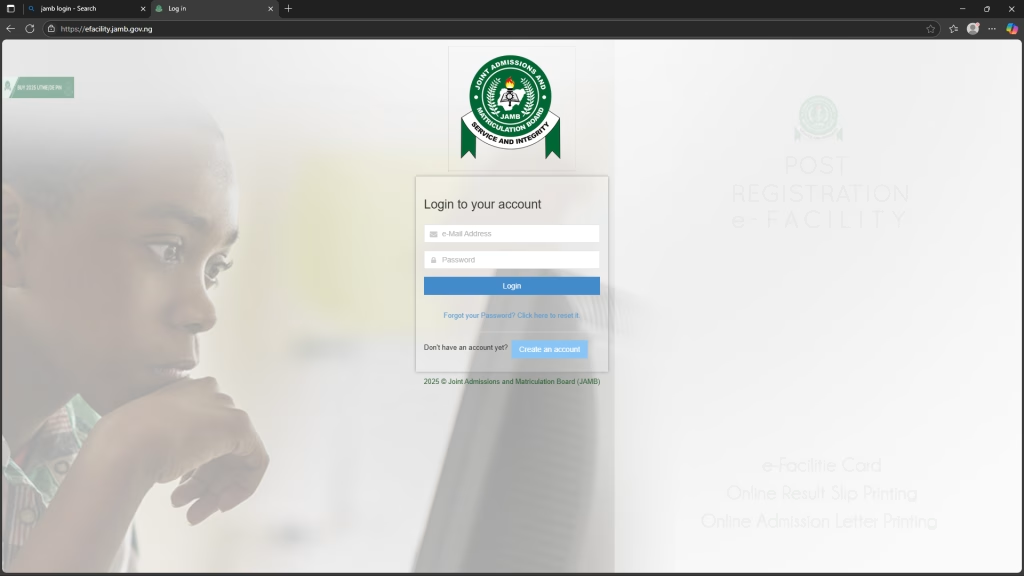
Step 2: Go to the Official JAMB Portal
In the address bar, type one of these official URLs exactly as written:
- https://efacility.jamb.gov.ng, this is the JAMB e‑Facility login page
- https://www.jamb.gov.ng/EfacilityLogin, alternative access point to the same portal
Make sure you see the official “jamb.gov.ng” domain, anything else might be fake or a scam.
Step 3: Enter Your Email and Password
Once the login page loads:
- In the first box, enter the email address you used during registration.
- In the second box, enter your password exactly as you created it.
Be careful, even one wrong letter or number in your password will prevent you from logging in.
If you don’t remember your password, click “Forgot Password?” and follow the steps to reset it. A reset link will be sent to your registered email address.
Step 4: Click “Login”
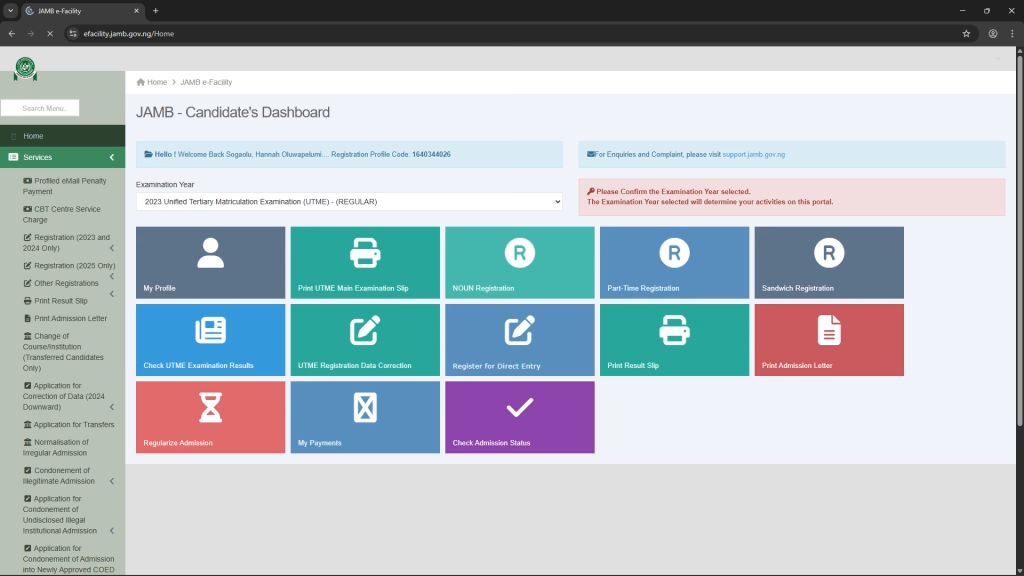
After entering your email and password, tap the “Login” button. If your credentials are correct, you’ll be taken to your JAMB profile dashboard.
From your dashboard, you can navigate to different services, including checking your UTME result, printing slips, accessing CAPS, and other options.
Step 5: Navigating Your JAMB Profile
Once logged in, you will see various menus and options. These may include:
- Check UTME Result — view and print your scores
- Check Admission Status — see if you’ve been offered admission
- Access JAMB CAPS — manage your admission offers
- Print Admission Letter — if admitted, download and print
- Correction of Data — update some details if necessary
- Change Institution or Course — during open windows
You can explore these options once you’re inside your account.
How to Access Your CAPS (Central Admission Processing System)
Once logged in, you can go to JAMB CAPS to check your admission status and respond to offers.
Here’s how:
- After logging in at the JAMB portal, look for “Check Admission Status”.
- Click on it.
- Then select “Access my CAPS” to open the admissions dashboard.
- From there, you can accept or reject offers and see your latest admission updates.
What to Do If You Forgot Your Password
If you can’t remember your password:
- On the JAMB login page, click “Forgot Password?”
- Enter your registered email address.
- JAMB will send you a password reset link via email.
- Open the link and set a new password.
- Write it down somewhere safe for future use.
This process keeps your account secure, and as long as you still have access to your email, you can reset it easily.
Tips for Successful Login
- Always use the official JAMB portal (efacility.jamb.gov.ng).
- Make sure your internet connection is stable.
- Avoid logging in using unknown public devices to protect your login details.
- Clear your browser cache if the page is not loading or shows errors.
- If you’re still having trouble, use another browser or try from a laptop rather than a phone.
Common Problems and How to Fix Them
Problem: Wrong email or password error. This usually happens when either the email or the password is incorrect. Double‑check your credentials and ensure they match what you used during registration. If necessary, reset your password.
Problem: Page not loading or website busyJAMB portals sometimes slow down because of heavy traffic. Try refreshing the page, clearing your browser cache, or waiting a few minutes before trying again.
Problem: Email address not recognized. If your registered email doesn’t work, it may be different from what you think. Check your original registration slip for the email used or contact JAMB support.
Why Using the Portal Is Important
Logging in to the JAMB portal isn’t just about checking results. Through the portal, you can:
- View and print your UTME result
- Monitor your admission status
- Accept or reject offers via CAPS
- Print your JAMB admission letter once admitted
- Apply for corrections or changes when allowed
- Update your profile information if needed
Always access the portal using your personal email and password. Keep your login details secure and never share them with strangers or unverified café operators. Proper login practice keeps your profile safe and ensures you can complete all necessary steps from result checking to admission processing without interruption.

Hi there! I could have sworn I’ve been to this site before but after looking at some of the articles I realized it’s
new to me. Anyways, I’m certainly pleased I found it and I’ll be bookmarking it and checking back regularly!
I’m extremely impressed with your writing skills as well as with the layout on your weblog.
Is this a paid theme or did you modify it yourself?
Either way keep up the excellent quality writing, it’s rare to
see a nice blog like this one today.
궁금한데요 골프 경기 보기 참고로 SNS에 올려도 되나요 덕분에 해결했어요
epl중계
sildenafil metabolism
sildenafil metabolism
What i do not realize is actually how you are no longer actually a
lot more smartly-preferred than you might be right now.
You are so intelligent. You already know therefore significantly when it comes to this subject, produced me personally consider it from so many numerous angles.
Its like men and women don’t seem to be interested
unless it’s one thing to accomplish with Lady gaga! Your own stuffs outstanding.
At all times take care of it up!
semaglutide dosing schedule in units
semaglutide dosing schedule in units
finasteride topical buy
finasteride topical buy
how long does topamax take to start working
how long does topamax take to start working
semaglutid tabletter
semaglutid tabletter
costco vs rogaine
costco vs rogaine
doxycycline hyclate indigestion
doxycycline hyclate indigestion
flagyl treatment uti
flagyl treatment uti
cialis tadalafil buy
cialis tadalafil buy
Erlebe jetzt aufregende Gewinne im [url=https://solonlinecasino.de/]solana casino sites[/url] und sichere dir exklusive Boni.
Spieler schatzen die schnellen Transaktionen und niedrigen Gebuhren, die Solana bietet.
casino on solana [url=https://sol-casino-liste.de/]https://sol-casino-liste.de/[/url]
[url=https://888stareg.com/]لعبه 888[/url]
تعتبر منصة 888starz eg وجهة مميزة للاعبين الباحثين عن تنوع في الألعاب وخيارات مراهنة واسعة.
القسم الثاني:
تدعم هذه البيانات استراتيجيات مراهنة أكثر احترافية وتزيد من احتمالات النجاح.
القسم الثالث:
تحتوي المنصة على مجموعة كبيرة من ألعاب الكازينو الحية مع موزعين مباشرون.
القسم الرابع:
تهتم 888starz eg بأمان المستخدم وحماية بياناته من خلال تقنيات تشفير متقدمة.
عزيزتي، يمكنك زيارة [url=https://888star-888starz.com/]stars 888[/url] للاستفادة من عروض ومراهنات حصرية.
888starz هو منصة ترفيهية تقدم مجموعة متنوعة من الألعاب الرقمية للمستخدمين.
القسم الثاني:
تستخدم 888starz تقنيات تشفير متقدمة لدرء مخاطر انتهاك البيانات وحماية المعلومات.
القسم الثالث:
تشمل العروض مكافآت ترحيبية وبونص على الإيداع ورسوم استرداد وأحداث موسمية.
القسم الرابع:
تبقى رؤية 888starz مركزة على تقديم ترفيه آمن ومسؤول وابتكاري للاعبين حول العالم.
[url=https://888star-eg.com/]888straz[/url] ???? ????? ????? ???????? ????? ?? ???.
???? ?????? ??? ???? ???? ??????? ????? ??? ?????? ????????.
ШЄШіШ¬ЩЉЩ„ 888starz [url=https://9newstelugu.com/888-starz-%d9%85%d8%b5%d8%b1-%d9%83%d8%a7%d8%b2%d9%8a%d9%86%d9%88-%d8%a3%d9%88%d9%86%d9%84%d8%a7%d9%8a%d9%86-%d9%88%d9%85%d8%b1%d8%a7%d9%87%d9%86%d8%a7%d8%aa-%d8%b1%d9%8a%d8%a7%d8%b6%d9%8a%d8%a9]https://9newstelugu.com/888-starz-%d9%85%d8%b5%d8%b1-%d9%83%d8%a7%d8%b2%d9%8a%d9%86%d9%88-%d8%a3%d9%88%d9%86%d9%84%d8%a7%d9%8a%d9%86-%d9%88%d9%85%d8%b1%d8%a7%d9%87%d9%86%d8%a7%d8%aa-%d8%b1%d9%8a%d8%a7%d8%b6%d9%8a%d8%a9/[/url]
جاءت واجهة الصفحة الرئيسية بتصميم منظم يتيح التنقل بين الأقسام بسهولة وسرعة.
يضم قسم الرياضة في 888starz تشكيلة واسعة من البطولات العالمية والمحلية للمراهنة عليها.
تظهر العناوين الرائجة والألعاب الحديثة بشكل بارز على الواجهة الرئيسية.
يُنصح دائمًا بمراجعة شروط العروض وتحديد ميزانية واللعب بمسؤولية.
زوروا [url=https://888star-egypt.com/]888stazr[/url] للمزيد من المعلومات والعروض الخاصة.
تتصدر 888starz egypt قائمة المنصات في مجال الترفيه الرقمي بين المستخدمين.
تقدم المنصة مجموعة متنوعة من الألعاب والخدمات المصممة لتلبية احتياجات اللاعبين. تقدم المنصة مجموعة متنوعة من الألعاب والخدمات المصممة لتلبية احتياجات اللاعبين.
تتميز الواجهة بسهولة الاستخدام وسرعة الاستجابة. تتميز الواجهة بسهولة الاستخدام وسرعة الاستجابة.
القسم الثاني:
تتضمن عروض 888starz egypt مكافآت ترحيبية للمشتركين الجدد. توفر 888starz egypt حزم مكافآت جذابة للمستخدمين الجدد.
كما توجد حملات ترويجية مستمرة لزيادة التفاعل مع اللاعبين. وتدير 888starz egypt برامج ترويجية منتظمة لرفع مستوى النشاط داخل الموقع.
تتنوع الجوائز بين رصيد مجاني ودورات لعب ومزايا خاصة. تتراوح المكافآت بين أرصدة مجانية ودورات لعب ومكافآت حصرية.
القسم الثالث:
يعتمد محتوى 888starz egypt على مجموعة من المزودين العالميين للألعاب. تستورد المنصة محتواها من مزودين عالميين مختصين في الألعاب الرقمية.
هذا يضمن تنوعاً وجودة في الخيارات المتاحة للمستخدمين. هذا يضمن تنوعاً وجودة في الخيارات المتاحة للمستخدمين.
كما تلتزم المنصة بتحديث محتواها بانتظام لمواكبة التطورات. وتقوم المنصة بتجديد محتواها بشكل دوري لضمان تجربة معاصرة للمستخدمين.
القسم الرابع:
تولي 888starz egypt أهمية لأمان المعاملات وحماية البيانات الشخصية. تولي 888starz egypt أهمية لأمان المعاملات وحماية البيانات الشخصية.
تستخدم تقنيات تشفير وحلول دفع آمنة لتقليل المخاطر. تستخدم تقنيات تشفير وحلول دفع آمنة لتقليل المخاطر.
يمكن للمستخدمين التواصل مع دعم فني متوفر لمعالجة أي قضايا بسرعة. ويستطيع الأعضاء الاتصال بخدمة العملاء لحل المشكلات بسرعة وكفاءة.
يسمح تصميم الواجهة الرئيسية بالانتقال السريع بين المراهنات الرياضية والكازينو.
يمكن للاعب متابعة الرهان الحي مباشرة من الصفحة الرئيسية دون الانتقال لصفحات أخرى.
888starz casino [url=http://www.888starz-eg-africa.com]https://888starz-eg-africa.com/[/url]
يمكن الدخول إلى الكازينو المباشر مباشرة من الصفحة الرئيسية بنقرة واحدة.
تعرض الصفحة الرئيسية للموقع الرسمي 888starz أحدث العروض الترحيبية للاعبين الجدد في مصر.
???? ?????? ??????? ?? ???? 888starz ?????? ??? ????? ??? ?? ?????? ??? ?????.
???? 888starz ????? ????? ???? ???? ????? ????? ??????? ?????????? ?? ???.
88starz [url=https://888starseg.com/]88starz[/url].
????? ????? 888starz ??????? ?????? ??????? ? iOS ???? ????? ?????? ??????.
???? ?????? ??????? ?? ???? ???????? ?? ???? ???????? ??????? ???????.
يكفل الموقع نزاهة النتائج وأمان الحسابات من خلال أنظمة رقابة معتمدة.
888starz 1xbet [url=wordsbyparker.com/wiki/index.php?title=888starz_1xbet:_%d8%b3%d9%84%d9%88%d8%aa%d8%b3_%d9%88%d9%85%d8%a8%d8%a7%d8%b1%d9%8a%d8%a7%d8%aa_%d9%88%d8%b1%d9%87%d8%a7%d9%86%d8%a7%d8%aa_%d9%81%d9%8a_%d9%85%d9%83%d8%a7%d9%86_%d9%88%d8%a7%d8%ad%d8%af]https://wordsbyparker.com/wiki/index.php?title=888starz_1xbet:_%d8%b3%d9%84%d9%88%d8%aa%d8%b3_%d9%88%d9%85%d8%a8%d8%a7%d8%b1%d9%8a%d8%a7%d8%aa_%d9%88%d8%b1%d9%87%d8%a7%d9%86%d8%a7%d8%aa_%d9%81%d9%8a_%d9%85%d9%83%d8%a7%d9%86_%d9%88%d8%a7%d8%ad%d8%af[/url]
يضم الكازينو آلاف العناوين من السلوت والروليت والبلاك جاك من مطورين رائدين.
يبرز 888starz أهم المباريات وخيارات المراهنة في مقدمة قسم الرياضة.
يمنح 888starz المستخدمين الجدد عرضًا ترحيبيًا يجمع بين بونص الإيداع والفري سبين.
يرسل التطبيق تنبيهات لحظية بالعروض والمباريات الهامة لكل لاعب.
يمكن للاعب الانتقال بسرعة بين ألعاب الكازينو وخطوط المراهنة الرياضية بسهولة.
يضم قسم الكازينو ما يزيد عن خمسة آلاف لعبة سلوت وطاولة من مطورين عالميين موثوقين.
يتيح 888starz الرهان على ما يزيد عن 50 نوعًا رياضيًا تغطي أبرز الأحداث العالمية.
يقدم الموقع مكافآت دورية مثل كاش باك 50% وعروض تأمين على المراهنات.
يوفر الموقع خيارات إيداع متنوعة من البطاقات إلى المحافظ والعملات المشفرة بحد أدنى من 5 دولارات.
888 africa [url=plaza.rakuten.co.jp/wordstatik/diary/202508230000]https://plaza.rakuten.co.jp/wordstatik/diary/202508230000/[/url]
Crazy Time rappresenta uno dei game show dal vivo più amati nei casinò online.
crazytime demo [url=http://wooriwebs.com/bbs/board.php?bo_table=faq/]https://wooriwebs.com/bbs/board.php?bo_table=faq[/url]
La ruota principale di Crazy Time è divisa in caselle numerate e quattro bonus speciali.
Per giocare basta puntare su un numero o su uno dei quattro segmenti bonus disponibili.
Conviene conoscere le regole e i moltiplicatori dei round prima di puntare.
يُعد الموقع الرسمي 888starz في مصر منصة رائدة للكازينو والرهانات الرياضية تجمع كل الخدمات في مكان واحد.
يبرز 888starz الألعاب الأعلى تقييمًا والجديدة منها ضمن واجهة الكازينو.
تتوفر خطوط مراهنة على الدوريات العالمية والمحلية بما فيها الدوري المصري.
processing 888starz bet [url=http://www.egypt888stars.com]https://egypt888stars.com/[/url]
يقدم 888starz للاعبين المصريين الجدد عرضًا ترحيبيًا يصل إلى 1500 يورو و150 دورة مجانية.
يوفر 888starz خيارات إيداع متنوعة من البطاقات إلى المحافظ الرقمية وأكثر من 30 عملة مشفرة.
Rasmiy sayt asosiy sahifada top o’yinlar va jonli stavkalarni ajratib ko’rsatadi.
888starz зеркало вход [url=http://888-uz9.com/]https://888-uz9.com/[/url]
Mobil versiya barqaror ishlaydi va kichik ekranlar uchun optimallashtirilgan.
888starz barcha moliyaviy operatsiyalarni zamonaviy shifrlash bilan himoya qiladi.
Platforma shaxsiy va moliyaviy ma’lumotlarni to’liq himoya ostida saqlaydi.
Sayt to’liq o’zbek tilida ishlaydi va foydalanuvchilar uchun qulay interfeysga ega.
Kazino bo’limi Pragmatic Play, NetEnt va Microgaming kabi mashhur provayderlardan ko’plab o’yinlarni o’z ichiga oladi.
888starz bet [url=https://www.888-uz8.com]https://888-uz8.com/[/url]
Rasmiy sayt 50 dan ortiq sport turiga tikish imkoniyatini taqdim etadi.
Rasmiy sayt muntazam bonuslar, jumladan keshbek va sug’urta takliflarini taqdim etadi.
Yangi hisob yaratish telefon, email yoki bir tugma orqali tez va oson bajariladi.
888starz تحميل [url=https://www.inkbunny.net/kevinthomas/]https://inkbunny.net/kevinthomas[/url]
??? ????? 888starz ???????? ?????? ??? ????? ??????? ?????? ?? ????? ??????.
??? ????? ????? ???? ????? ???? ??????? ?????? ????? ??????? ????????.
?????? ????? ??????? ?? ???? ??????? ??? ???? ??? ????????? ???????.
????? ?????? ?????? ??? apk ?? ?????? ?????? ????? ????? ???????? ?? ??? ??????.
??? ????? ??????? ??? iOS ?????? ?????? ??? ?????? ??? ??????? ??????.
Платформа отличается удобным интерфейсом и адаптивным дизайном для мобильных устройств.
88stars [url=https://www.888-uz10.com]https://888-uz10.com[/url]
Процесс регистрации прост и прозрачен, и подтверждение аккаунта занимает минимальное время при соблюдении условий.
888 star bet [url=888starz-uzb4.com]https://888starz-uzb4.com[/url]
[url=https://888stars-egy.com]888 مراهنات[/url] هي منصة مراهنات عبر الإنترنت تقدم ألعاب كازينو وخيارات رهان متنوعة للمستخدمين العرب.
تعرف 888starz بكونها وجهة مفضلة لعشاق الألعاب الإلكترونية.
القسم الثاني:
تضيف المنصة ألعابًا جديدة بانتظام لتبقي تجربة المستخدم متجددة.
القسم الثالث:
تدعم 888starz أنظمة دفع متعددة لتسهيل المعاملات المالية.
القسم الرابع:
تسهم برامج الولاء في تقديم مزايا مخصصة للمستخدمين النشطين.
[url=https://888starzs6.com]8888star[/url] هو موقع للمراهنات والألعاب الإلكترونية يقدم خدمات تسجيل الدخول والدعم بلغات متعددة.
تُعد 888starz واحدة من أشهر منصات المراهنات والترفيه عبر الإنترنت.
القسم الثاني:
تعتمد 888starz على مزودين موثوقين لضمان أداء الألعاب بشكل ممتاز.
القسم الثالث:
تقدم 888starz بونصات وعروض ترحيبية ومكافآت للاعبين الحاليين والجدد.
القسم الرابع:
السلامة والخصوصية من نقاط التركيز في سياسة 888starz.
[url=https://888starzs8.com]starz888[/url]
يقدّم الدعم الفني في 888starz استجابة سريعة وفعّالة لاستفسارات اللاعبين.
В каталоге платформы доступны слоты, живые дилеры и разнообразные спортивные события для ставок в любое время.
888 statz [url=http://www.888starz-uzb6.com/]https://888starz-uzb6.com[/url]
[url=https://888starzs7.com]العاب 888[/url]
تقدم 888starz تجربة شاملة للمستخدمين الباحثين عن الترفيه والمراهنات وألعاب الكازينو.
القسم الثاني:
تلتزم 888starz بمعايير سلامة الألعاب وتوفير بيئة لعب موثوقة وقابلة للتحقق.
القسم الثالث:
تعتمد سياسة مكافآت مرنة تجذب اللاعبين وتكافئ نشاطهم على المنصة.
القسم الرابع:
تتوفر في المنصة طرق دفع متعددة تلبي احتياجات المستخدمين في مناطق مختلفة.
04vjk3
جرب الحظ الآن على [url=https://888starsegypt.com]processing@888starz.bet[/url] للفوز بجوائز مثيرة ومباشرة.
موقع 888starz يقدم تجربة ترفيهية شاملة مع تنوع في الألعاب والخدمات.
الفقرة الثانية:
فريق الدعم متوفر لمساعدة المستخدمين وحل المشكلات بسرعة.
يتوفر ملف apk لتطبيق 888starz للتحميل المباشر على هواتف أندرويد بسهولة.
888starz تحميل [url=https://www.theracingbicycle.com]https://theracingbicycle.com/[/url]
لتثبيت ملف apk على أندرويد يجب أولًا تفعيل خيار السماح بالتثبيت من مصادر غير معروفة.
يحصل التطبيق على تحديثات منتظمة تحافظ على استقراره وأمانه على أندرويد.
يفضل الحصول على apk تطبيق 888starz من المصدر الموثوق لضمان سلامة الجهاز.
يقدم إصدار iOS نفس أداء نسخة أندرويد مع واجهة محسّنة لأجهزة آبل.
يمثل موقع 888starz الرسمي وجهة متكاملة للاعبين في مصر تضم الكازينو والمراهنات الرياضية معًا.
يضم كازينو 888starz أكثر من 5000 لعبة من كبار المزودين العالميين مثل Pragmatic Play و NetEnt و Microgaming.
888starz [url=https://www.free-credits-report.com]https://free-credits-report.com/[/url]
يمكن الرهان على بطولات كبرى من الدوري الإنجليزي إلى أهم البطولات في مصر.
يقدم الموقع الرسمي مكافآت دورية مثل كاش باك 50% وعروض تأمين متنوعة.
يعمل الدعم الفني على مدار الساعة باللغتين العربية والإنجليزية عبر الدردشة والبريد والهاتف.
888starz تحميل [url=trurofoodfestival.com]https://trurofoodfestival.com/[/url]
يوفر 888starz تطبيقًا محمولًا يمنح لاعبي مصر وصولًا كاملًا إلى الموقع من الهاتف.
يتطلب أندرويد السماح بالمصادر الخارجية في الإعدادات قبل فتح ملف apk.
يقدم إصدار أندرويد أداءً سريعًا واستجابة فورية عند التنقل بين الأقسام.
يضمن الحصول على الملف من المصدر الرسمي سلامة الجهاز وخلوّه من البرمجيات الضارة.
يتميز تطبيق الآيفون بأداء سلس وتصميم متوافق تمامًا مع نظام iOS.
يستند 888starz إلى ترخيص دولي معتمد يكفل الشفافية وأمان معاملات كل لاعب.
يبرز الموقع عناوين الجاكبوت الكبرى والألعاب الحصرية التي تُضاف دوريًا.
يفتح 888starz خطوط مراهنة على عشرات الرياضات العالمية والمحلية على مدار الموسم.
يمنح 888starz أعضاءه المخلصين مزايا كبار الشخصيات مع مكافآت ترتقي بمستوى النشاط.
يتيح 888starz إيداعًا وسحبًا عبر فيزا وماستركارد ومحافظ رقمية وعشرات العملات الرقمية.
888starz [url=http://www.aclknights.com]https://aclknights.com/[/url]
يوفر 888starz واجهة عربية واضحة مخصصة لمستخدمي مصر وسهلة الاستخدام.
تظهر ماكينات السلوت الرائجة والإصدارات الجديدة بشكل بارز على الموقع الرسمي.
تشمل المراهنات أهم الدوريات مثل البريميرليج والليجا الإسبانية وأبرز الدوريات المحلية.
888starz [url=http://bbhscanners.com/]https://bbhscanners.com/[/url]
يقدم الموقع الرسمي مكافآت دورية مثل كاش باك 50% وعروض تأمين متنوعة.
يعمل الدعم الفني على مدار الساعة باللغتين العربية والإنجليزية عبر الدردشة والبريد والهاتف.
Platformadan brauzer orqali ham, Android va iOS uchun ilova orqali ham foydalanish mumkin.
888starz uz [url=https://oerknal.org/888starz-platformasida-futbol-va-kazino-boyicha-stavkalar-qanday-qoyiladi/888starz]888starz uz[/url].
Kazino bo’limida Evolution, Evoplay, Spade Gaming, Smartsoft va boshqa provayderlardan minglab slotlar mavjud.
888starz futbol, tennis, basketbol va kibersportni o’z ichiga olgan keng sport yo’nalishlarini qamrab oladi.
Bundan tashqari saytda keshbek, bepul stavkalar va muntazam turnirlar doimiy ravishda o’tkaziladi.
Rasmiy saytda mahalliy va xalqaro to’lov usullari qulay limitlar bilan mavjud.
Rasmiy sayt to’liq o’zbek tilida ishlaydi va foydalanuvchilar uchun qulay interfeysga ega.
Rasmiy saytda jonli dilerli kazino bo’limi real dilerlar bilan o’ynash imkonini beradi.
Rasmiy saytda futbol, tennis, basketbol va kibersport kabi ko’plab sport turlari mavjud.
888starz uz [url=http://archevore.com/888starz-royxatdan-otish-jarayoni-xush-kelibsiz-bonuslari/]https://archevore.com/888starz-royxatdan-otish-jarayoni-xush-kelibsiz-bonuslari/[/url]
O’yinchilar saytdan brauzer, Android yoki iOS ilovasi orqali bemalol foydalanishlari mumkin.
Rasmiy saytda taniqli studiyalardan minglab slot doimiy to’ldirilib boriladi.
888starz uz [url=https://freewriterai.com/]888starz uz[/url]
Rasmiy saytda mashhur va o’ziga xos sport turlarining keng ro’yxati mavjud.
Depozit paytida 888UZ777 promokodidan foydalanish eng katta bonusni ta’minlaydi.
Hisob ochish telefon yoki email orqali bir necha daqiqa ichida amalga oshadi.
Kompaniya foydalanuvchi ma’lumotlari va moliyaviy operatsiyalarni himoya qilishga katta e’tibor qaratadi.
Bonus va aksiyalar 888starz foydalanuvchilarni jalb qilishda muhim rol o’ynaydi. Dastlabki depozit bonusi yangi a’zolarga katta imkoniyatlar ochadi.
888starz зеркало [url=http://888starz-uzb10.com/]https://888starz-uzb10.com/[/url]
O’yin tanlovi va provayderlar assortimenti 888starz-da keng. Jonli kazino bo’limi real dilerlar bilan o’yin tajribasini taqdim etadi.
To’lovlar va mijozlarga xizmat ko’rsatish 888starz ning ustun tomonlaridan biridir. Naqd pul yechib olish va depozit operatsiyalari tez va ishonchli amalga oshiriladi.
Mijozlarga xizmat ko’rsatish va texnik yordam 888starzning muhim qismlaridir.
888starz вход в личный кабинет [url=http://888-uz3.com/]https://888-uz3.com/[/url]
تتوفر واجهة معرّبة سهلة ضمن دعم يفوق 50 لغة لتناسب لاعبي مصر.
يجد اللاعب في قسم 888Games عناوين خاصة لا تتوفر لدى غيره.
يقدم الموقع مراهنة فورية وإحصاءات مباشرة على المباريات الجارية.
يحصل المستخدم الجديد في الكازينو على ما يصل إلى 1500 يورو و150 فري سبين.
يتوفر فريق مساعدة طوال اليوم مع تطبيق لأجهزة أندرويد وآبل.
888stars [url=http://www.artoved.stck.me/post/1664861/888starz]888 stars[/url]
888starz apk kam joy egallaydi va Androidning aksariyat versiyalariga mos keladi.
O’rnatishdan oldin sozlamalarda noma’lum manbalardan o’rnatishga ruxsat berish kerak.
Ilova bonuslar va o’yin natijalari haqida bildirishnomalarni bevosita telefonga yuboradi.
Mobil platforma Bittech B.V. litsenziyasi ostida xavfsiz o’yin muhitini ta’minlaydi.
Dastur orqali kirib, o’yinchi 2 evrodan boshlab depozit qo’yishi va istalgan vaqt yordam olishi mumkin.
скачать 888starz официальный сайт [url=https://6thavechurch.org]https://6thavechurch.org/[/url]
888starz Bittech B.V. kompaniyasining Curacao rasmiy litsenziyasi ostida ishlaydi va foydalanuvchi ma’lumotlarini himoya qiladi.
888Games to’plamida Crash, Dice va Plinko kabi ommabop tez o’yinlar mavjud.
O’yinchilar o’yin davomida jonli stavka qo’yib, natijalarni real vaqt rejimida kuzatishlari mumkin.
Faol foydalanuvchilar uchun haftalik keshbek va bonuslar uzluksiz taqdim etiladi.
888starzda akkaunt bir necha oddiy qadamda yaratiladi, kirish depoziti past.
888starz bet [url=http://888starz-uzb5.com/]https://888starz-uzb5.com/[/url]
يعمل 888starz تحت رقابة ترخيص دولي يكفل الشفافية وسرية بيانات المستخدم.
يتيح الموقع أكثر من مئتين وخمسين طاولة مباشرة للروليت والبلاك جاك والبكارات.
888 starz [url=888starzs9.com]starz 888[/url]
يفتح 888starz خطوط مراهنة على عشرات الرياضات بينها UFC والرياضات الإلكترونية.
يحصل المراهن الرياضي على مكافأة 100% تصل إلى 100 يورو عند أول إيداع.
يستغرق فتح حساب جديد دقائق معدودة فقط عبر الموقع الرسمي.
888stars [url=https://888starzs4.com]starz888[/url]
يتيح 888starz للمستخدم المصري الوصول إلى آلاف الألعاب وعشرات الرياضات من حساب واحد.
يجد اللاعب عناوين 888Games الفريدة التي تميّز الموقع عن غيره.
يشمل الموقع أكثر من 35 فئة رياضية تتابع كبرى الأحداث في العالم.
ويحصل المراهن الرياضي على مكافأة 100% حتى 100 يورو عند أول إيداع.
يدعم الموقع البطاقات والمحافظ إضافة إلى أكثر من 50 عملة رقمية بينها BTC و USDT و ETH.
يجمع موقع 888starz.bet بين أكثر من 4000 لعبة كازينو وعشرات الرياضات في مكان واحد للمستخدم المصري.
تضم غرف اللعب المباشر ما يزيد عن 250 طاولة يديرها موزعون فعليون.
يقدم 888starz مراهنات على عشرات الرياضات بينها الإي سبورتس مثل Dota 2 و CS:GO.
يمنح الكازينو اللاعبين الجدد مكافأة ترحيب حتى 1500 يورو مع 150 لفة مجانية.
لا يستغرق إنشاء الحساب سوى دقائق معدودة عبر المنصة الرسمية.
starz 888 [url=http://www.888starzs3.com]starz 888[/url]
Platforma xalqaro litsenziya ostida ishlaydi va har bir amaliyotda xavfsizlikni ta’minlaydi.
888starz ios [url=http://www.888starz-uzb9.com/apk]888starz ios[/url]
Eksklyuziv 888Games to’plami Crash, Plinko, Dice va Lottery kabi tezkor formatlarni jamlaydi.
Jonli rejimdagi tikishda koeffitsiyentlar o’yin borishiga qarab yangilanib turadi.
Kazino uchun yangi o’yinchi birinchi depozitga 1500€ gacha bonus va 150 bepul aylantirish oladi.
Saytda fiat va kripto usullari past minimal depozit bilan mavjud.
888starz sodda o’zbekcha menyu va ravon dizayn bilan foydalanishga qulay.
888starz ikki yuz ellikdan ziyod jonli stolni har qanday vaqtda taqdim etadi.
Real vaqt tikishi yuqori koeffitsiyent va tezkor yangilanish bilan ishlaydi.
888starz doimiy promolar va keshbek bilan faol o’yinchilarni qo’llab-quvvatlaydi.
888starzda yangi akkaunt minimal ma’lumot bilan qisqa vaqtda yaratiladi.
888starz bet [url=https://888stars2.com]888starz bet[/url]
88starz bet [url=http://www.888starz-uzb3.com]88starz bet[/url]
Rasmiy sayt ravon o’zbek tili va intuitiv boshqaruv bilan foydalanishga qulay.
888starz to’rt mingdan ziyod slot o’yinini doimiy yangilanuvchi katalogda taqdim etadi.
O’yinchilar o’yin ketayotganda jonli stavka qo’yib, natijalarni real vaqtda kuzatishlari mumkin.
Kazinoda yangi foydalanuvchini 1500€ gacha bonus hamda 150 bepul spin kutadi.
888starz karta va hamyonlardan tashqari BTC, USDT va ETH kabi 50+ kripto bilan ishlaydi.
888starz [url=https://888starzs10.com/]888starz[/url]
ولأن الجمهور عربي، تأتي الواجهة معرّبة بالكامل ضمن دعم يفوق 50 لغة.
أما عشاق الأجواء الحقيقية فينتظرهم كازينو حي بأكثر من 250 طاولة يديرها موزعون فعليون.
يوفر الموقع رهانًا فوريًا وإحصاءات مباشرة على المباريات الجارية.
وفي المقابل يحصل المراهن الرياضي على مكافأة 100% تصل إلى 100 يورو.
يتم إنشاء الحساب في دقائق معدودة على المنصة الرسمية.
888starz [url=https://888starzs2.com]888starz[/url]
بترخيص دولي معتمد، يوفر الموقع بيئة آمنة وشفافة لكل معاملة.
تعمل الطاولات الحية بأكثر من 250 وحدة بموزعين فعليين بلا توقف.
تتوفر أسواق على البطولات الكبرى إلى جانب الدوري المصري.
ينال لاعبو الرياضة عرضًا بنسبة 100% يبلغ 100 يورو.
يقدم الموقع خدمة عملاء على مدار الساعة بالعربية إضافة إلى تطبيق apk ونسخة آيفون.
Crazy Time è uno show televisivo dal vivo firmato Evolution, tra i titoli più popolari nei casinò in Italia.
La ruota è divisa in 54 segmenti che includono i numeri 1, 2, 5 e 10 e quattro caselle bonus.
Coin Flip lancia una moneta a due facce, ciascuna con un moltiplicatore diverso.
I moltiplicatori combinati possono spingere la vincita fino a 25.000 volte la posta.
Come ogni gioco d’azzardo, Crazy Time va affrontato con moderazione e budget prestabilito.
crazy time [url=http://www.xn--42ci8a2b4fsb7b.com/index.php?name=webboard&file=read&id=6519]crazy time[/url]
يمنح 888starz.bet مستخدمي القاهرة بوابة موحّدة تضم آلاف الألعاب وعشرات الرياضات.
يجد اللاعب في 888Games عناوين لا تتوفر لدى غير 888starz.
888starz [url=https://gr0undplan3.staushbrews.com/index.php/User:MarinaJuarez13]888starz[/url]
يمنح الرهان المباشر احتمالات محدّثة لحظيًا أثناء المباريات.
تبلغ باقة الترحيب في الكازينو 1500 يورو إضافة إلى 150 فري سبين.
لا يستغرق إنشاء الحساب سوى دقائق معدودة على المنصة الرسمية.
تعمل المنصة تحت ترخيص دولي يوفر بيئة آمنة وشفافة لكل مستخدم.
888starz [url=http://kyp.s4.xrea.com/cgi-bin/apus/apus.cgi]888starz[/url]
تعمل غرف اللعب المباشر بأكثر من 250 طاولة يديرها موزعون فعليون.
يقدم 888starz تغطية للدوريات الأوروبية والمنافسات المصرية.
يمنح الكازينو اللاعب الجديد مكافأة ترحيب تصل إلى 1500 يورو مع 150 لفة مجانية.
يقدم 888starz تسجيلًا سريعًا بخطوات بسيطة وحد إيداع منخفض.
O jakości kasyna decydują przede wszystkim licencja, wybór gier oraz jakość obsługi klienta.
Uczciwe kasyno korzysta z gier testowanych pod kątem losowości wyników.
Tryb demonstracyjny umożliwia poznanie gier bez ryzyka finansowego.
free chip casino [url=https://transcrire.histolab.fr/wiki/index.php?title=Utilisateur:DebraPus44410012]free chip casino[/url]
Atrakcyjny pakiet powitalny to jeden z głównych powodów wyboru danego kasyna.
Dobre kasyno działa płynnie na urządzeniach mobilnych oraz oferuje aplikację.
Kod promocyjny w Vox Casino pozwala aktywować oferty powitalne oraz dodatkowe premie.
Bonus z kodu aktywuje się zwykle po wpłacie spełniającej minimalny próg.
Bonus może dotyczyć wyłącznie wybranych gier lub kategorii automatów.
Aktualne promocje z kodami są zwykle widoczne w zakładce z ofertami.
Przed skorzystaniem z kodu warto zapoznać się z pełnym regulaminem promocji.
vox casino kod promocyjny 2026 [url=https://wiki.ithae.net/index.php?title=Vox_Casino_Kod_Promocyjny_2026:_Free_Spins_Promo_Code_At_Sign_Up]vox casino kod promocyjny 2026[/url]
Nowi użytkownicy z Polski mogą odebrać free spiny już przy pierwszej wpłacie.
Aby zdobyć darmowe spiny, należy najpierw założyć konto w Mostbet i potwierdzić dane.
Free spiny można wykorzystać na określonych grach ustalonych w regulaminie oferty.
Program lojalnościowy pozwala wymieniać punkty na darmowe obroty.
Zaleca się grę odpowiedzialną oraz ustalanie własnych limitów wydatków.
mostbet 30 free spins [url=https://community.weshareabundance.com/groups/mostbet-casino-free-spins-free-spins-codes-verified-and-updated/]mostbet 30 free spins[/url]
true fortune casino [url=https://graph.org/True-Fortune-Casino-Jackpot-Slots-in-2026-Where-the-Life-Changing-Wins-Actually-Live-07-05-3]true fortune casino[/url]
The casino focuses on ease of use, offering quick access to games and cashier from one account.
A free-play option lets players sample games without any financial risk.
Beyond the welcome offer, the casino runs ongoing promotions and loyalty rewards.
Cash-out speed varies by payment option, with e-wallets often among the fastest.
As with any casino, players should gamble responsibly and set personal limits.
лента Ковар 29НК [url=https://stalnayalenta.ru/precizionnye-splavy/]лента Ковар 29НК[/url]
يفتح 888starz أمام لاعبي مصر بوابة رسمية واحدة تجمع آلاف الألعاب وعشرات الرياضات.
تقدم سلسلة 888Games الحصرية ألعابًا فورية مثل Crash و Plinko و Dice و Lottery.
يوفر الموقع رهانًا فوريًا وإحصاءات مباشرة على المباريات الجارية.
يقدم قسم الرياضة بونص أول إيداع بنسبة 100% حتى 100 يورو.
يعمل فريق المساعدة طوال اليوم مع تطبيق محمول لأندرويد وآبل.
888starz [url=http://www.888starzs2.com]888 starz[/url]
يستند 888starz إلى ترخيص Curaçao رسمي يحمي أموال اللاعب وبياناته.
تضم غرف اللعب المباشر ما يزيد عن 250 طاولة بموزعين فعليين.
starz 888 [url=https://888starzs5.com/]starz 888[/url]
تتوفر أسواق على البطولات الكبرى إلى جانب الدوري المصري.
يمنح 888starz أول إيداع بونصًا حتى 1500 يورو و150 دورة مجانية.
يبقى الدعم متاحًا 24/7 عبر الدردشة والبريد مع تطبيق لأندرويد و iOS.
W Vox Casino kod promocyjny daje dostęp do bonusów niedostępnych bez jego wpisania.
W odpowiednim polu formularza trzeba wpisać kod promocyjny przed potwierdzeniem rejestracji.
Przed wypłatą obowiązuje określony mnożnik obrotu dla środków bonusowych.
Ważne kody bywają publikowane w sekcji promocji oraz u zaufanych partnerów.
Grę należy prowadzić odpowiedzialnie, a oferta jest przeznaczona dla osób pełnoletnich.
vox casino kod promocyjny 2026 [url=https://oukirilimetodij.edu.mk/question/vox-casino-kod-promocyjny-2026-deposit-promo-code-to-double-your-balance/]vox casino kod promocyjny 2026[/url]
starz 888 [url=https://888starzs11.com/]starz 888[/url]
تخضع المنصة لترخيص دولي يوفر شفافية وأمانًا في كل عملية.
يجد اللاعب في 888Games عناوين خاصة لا تتوفر لدى غير 888starz.
يوفر الموقع رهانًا فوريًا وإحصاءات مباشرة على المباريات الجارية.
ينال لاعبو الرياضة مكافأة بنسبة 100% تبلغ 100 يورو.
يعمل فريق المساعدة طوال اليوم مع تطبيق محمول لأندرويد وآبل.
يتيح 888starz للاعبين في مصر منصة رسمية تجمع الكازينو والرهانات الرياضية في موقع واحد.
888starz [url=https://888starzs16.com/]888starz[/url]
تضم غرف اللعب المباشر ما يزيد عن 250 طاولة بموزعين فعليين.
يقدم 888starz تغطية للدوريات الأوروبية والمنافسات المصرية.
يمنح 888starz أول إيداع بونصًا حتى 1500 يورو و150 دورة مجانية.
يقدم الموقع خدمة عملاء على مدار الساعة بالعربية إضافة إلى تطبيق apk.
يخضع الموقع لترخيص دولي يكفل الشفافية والأمان في كل معاملة.
888stars [url=https://888starzs15.com/]888stars[/url]
يبرز الموقع مجموعة 888Games الخاصة بنتائجها السريعة.
يتيح 888starz الرهان على عشرات الرياضات بينها UFC و Dota 2 و CS:GO.
يتوفر للاعبي الرياضة عرض بنسبة 100% يبلغ 100 يورو.
يقدم 888starz تسجيلًا سريعًا بخطوات بسيطة وحد إيداع منخفض.
888 starz [url=https://888starzs17.com/]888 starz[/url]
يتميز الموقع بواجهة عربية سلسة ضمن دعم يتخطى 50 لغة.
يعرض 888starz أكثر من أربعة آلاف عنوان سلوت في مكتبة تتوسع دائمًا.
يمنح الرهان المباشر تحديثًا لحظيًا للأودز مع متابعة حية للمباريات.
ينال لاعبو الرهان الرياضي عرضًا بنسبة 100% يصل إلى 100 يورو.
يدعم الموقع البطاقات والمحافظ إضافة إلى أكثر من 50 عملة رقمية بينها BTC و USDT و ETH.
يستند 888starz إلى رخصة Curaçao رسمية تكفل عدالة اللعب وحماية الأرصدة.
يجد اللاعب عناوين بمواضيع مختلفة من المغامرات إلى الفواكه الكلاسيكية.
يضم الكازينو الحي أكثر من 250 طاولة يديرها موزعون حقيقيون على مدار الساعة.
تشمل مجموعة 888Games عناوين لا تتوفر خارج منصة 888starz.
يمكن الإيداع والسحب عبر Visa و Mastercard و Skrill والكريبتو.
starz888 [url=https://888starzs19.com/]starz888[/url]
يقدم قسم الكازينو في 888starz تجربة ألعاب متكاملة للمستخدمين في مصر.
starz 888 [url=https://888starzs20.com/]starz 888[/url]
يوفر الوضع التجريبي فرصة للتعرف على آلية اللعبة قبل الإيداع.
تتنوع الخيارات بين البكارات والبوكر وألعاب الطاولة الكلاسيكية.
تتوفر أيضًا ألعاب TV مثل Keno و Wheel و Bingo ضمن قسم مستقل.
يمكن الإيداع والسحب عبر Visa و Mastercard و Skrill والكريبتو.
يعتمد لاعبو القاهرة على 888starz.bet للوصول إلى آلاف الألعاب وعشرات الرياضات.
888starz [url=https://888starzs14.com/]888starz[/url]
تحتوي منصة الكازينو على ما يزيد عن 4000 لعبة سلوت من مطورين عالميين.
يغطي قسم الرياضة أكثر من 35 نوعًا من كرة القدم والتنس إلى الملاكمة والإي سبورتس.
ويحصل المراهن الرياضي على مكافأة 100% حتى 100 يورو عند أول إيداع.
يدعم الموقع البطاقات والمحافظ إضافة إلى أكثر من 50 عملة رقمية بينها BTC و USDT و ETH.
تعمل المنصة برخصة كوراساو الصادرة لشركة Bittech B.V. التي تضمن نزاهة اللعب.
يحتوي الكازينو على أكثر من 4000 لعبة سلوت من مزودين عالميين بارزين.
starz888 [url=https://888starzs12.com/]starz888[/url]
يمكن الرهان على أحداث من دوري الأبطال إلى مباريات مصر.
تبلغ باقة الترحيب في الكازينو 1500 يورو إضافة إلى 150 فري سبين.
يمكن فتح حساب جديد عبر الهاتف أو البريد في دقائق قليلة.
888starz app [url=https://theracingbicycle.com/daleel-tahmeel-888starz-mobile/]888starz app[/url]
يحظى تطبيق 888starz apk بإقبال واسع من مستخدمي الهواتف الذكية في مصر.
يمكن العثور على الملف داخل مجلد Downloads بمجرد اكتمال التنزيل.
لن يبدأ التثبيت قبل منح الإذن بتثبيت التطبيقات من خارج المتجر الرسمي.
يستطيع المستخدم في مصر إيداع الأموال وسحبها مباشرة من التطبيق.
يحافظ تحديث التطبيق بانتظام على استقراره وحمايته من الثغرات.
يمكن التواصل مع خدمة العملاء مباشرة من التطبيق عبر الدردشة الحية.
تأتي الواجهة معرّبة بالكامل ضمن دعم يتجاوز 50 لغة.
يجد اللاعب في 888Games عناوين لا تتوفر خارج منصة 888starz.
يمنح الرهان المباشر احتمالات محدّثة لحظيًا أثناء المباريات.
ينال المراهن الرياضي بونص أول إيداع بنسبة 100% حتى 100 يورو.
888starz [url=https://888starzs18.com/]888starz[/url]
يمكن فتح حساب جديد عبر الهاتف أو البريد في دقائق قليلة.
أصبح 888starz apk من أكثر الملفات طلبًا بين مستخدمي أندرويد في مصر.
يحصل المستخدم في مصر على ملف apk عبر رابط التحميل المخصص لأجهزة أندرويد.
يقوم المستخدم بفتح ملف apk والضغط على زر التثبيت لتنطلق العملية تلقائيًا.
يدعم التطبيق وسائل الدفع المحلية والمحافظ الإلكترونية والعملات الرقمية.
يُنصح بتثبيت كل تحديث جديد لملف apk للاستفادة من التحسينات الأخيرة.
يجد المستخدم في مصر مساعدة فورية عبر الدردشة داخل تطبيق 888starz.
تنزيل 888starz للاندرويد [url=https://trurofoodfestival.com/rabit-amn-888starz-apk-android-tahdithat/]تنزيل 888starz للاندرويد[/url]
The site combines a huge game library with a clean, modern interface.
Progressive jackpots and top-rated new releases are highlighted in the casino lobby.
Every wager earns loyalty points that can be exchanged for bonus credit.
Deposits are processed instantly so players can start playing within minutes.
A valid licence and secure infrastructure make True Fortune a safe place to play.
Players can enjoy the full game library on mobile without installing an app.
true fortune casino no deposit promo codes for existing players [url=http://www.true-fortune-casino31.com/bonus-codes-for-existing-players/]true fortune casino no deposit promo codes for existing players[/url]
The official True Fortune casino has built a strong reputation with players across the United Kingdom.
Progressive jackpots and top-rated new releases are highlighted in the casino lobby.
Regular promotions include reload bonuses, cashback and free spin drops throughout the week.
true fortune $25 free spins no deposit usa [url=https://true-fortune-casino10.com/free-spins]true fortune $25 free spins no deposit usa[/url]
Fast, transparent withdrawals mean winnings reach players without long delays.
All games run on certified random number generators for provably fair results.
The site is fully responsive, adapting to any screen size on the go.
casino true [url=https://true-fortune-casino14.com]casino true[/url]
True Fortune casino is one of the most popular online casinos among players in the United Kingdom.
A dedicated live casino streams real-dealer roulette, blackjack and baccarat around the clock.
First-time players receive a welcome bonus plus free spins after signing up.
True Fortune supports popular payment methods including Visa, Mastercard and e-wallets like Skrill and Neteller.
Certified RNG technology ensures every spin and hand is completely random.
The mobile casino runs smoothly in any browser with no download required.
The casino welcomes players from the United Kingdom with a localised experience and responsive support.
Fans of live gaming can join real-dealer tables running 24 hours a day.
A loyalty programme rewards active players with points that convert into real bonuses.
Adding funds takes just a moment and play begins straight away.
Players in the United Kingdom can use built-in tools to keep their gambling under control.
New users can check the FAQ for quick guidance on bonuses and payments.
true fortune promo codes [url=http://www.true-fortune-casino13.com/promocode]true fortune promo codes[/url]
Rasmiy veb-sayt o’yinchilarga barcha xizmatlarga qulay kirishni ta’minlaydi.
Foydalanuvchilar rasmiy sayt orqali jonli kazino stollarida istalgan vaqtda o’ynashlari mumkin.
Rasmiy veb-sayt eng muhim sport tadbirlariga tikishni qo’llab-quvvatlaydi.
Rasmiy sayt barcha aksiyalarni topish oson bo’lgan aniq bo’limda namoyish etadi.
Rasmiy sayt telefon raqami yoki email orqali tezkor ro’yxatdan o’tishni ta’minlaydi.
starz888 скачать [url=https://888stars4.com/apk/]starz888 скачать[/url]
True Fortune is tailored to players in the United Kingdom, with familiar payment methods and clear terms.
The game library includes thousands of titles, from classic fruit machines to modern video slots.
Ongoing offers such as weekly cashback and reload deals keep the balance topped up.
true casino [url=https://true-fortune-casino32.com]true casino[/url]
Deposits are processed instantly so players can start playing within minutes.
Players in the United Kingdom can use built-in tools to keep their gambling under control.
Customer support is available around the clock via live chat and email in English.
888 stars скачать [url=http://888stars7.com/apk/]888 stars скачать[/url]
Rasmiy saytga kirish orqali foydalanuvchilar barcha o’yin va tikish bo’limlaridan foydalanishlari mumkin.
Top reytingli slotlar rasmiy sayt interfeysida alohida ajratib beriladi.
888Starz rasmiy saytining sport bo’limi 50 dan ortiq sport turiga tikish imkonini beradi.
888Starz O’zbekistondagi o’yinchilar uchun mavjud eng so’nggi bonus va takliflarni ajratib beradi.
Rasmiy sayt telefon raqami yoki email orqali tezkor ro’yxatdan o’tishni ta’minlaydi.
888Starz rasmiy veb-sayti foydalanuvchilarga kazino va sport stavkalarini bitta platformada taqdim etadi.
Top reytingli slotlar rasmiy sayt interfeysida alohida ajratib beriladi.
888 starz ios [url=http://888stars9.com/apk/]888 starz ios[/url]
888Starz rasmiy sayti keng qamrovli sport tikishlarini bitta joyda taqdim etadi.
888Starz O’zbekistondagi yangi o’yinchilarga sport va kazino uchun xush kelibsiz paketini beradi.
Mijozlarni qo’llab-quvvatlash xizmati kun davomida jonli chat va elektron pochta orqali mavjud.
Designed with players in the United Kingdom in mind, the site keeps registration and play simple.
Progressive jackpots and top-rated new releases are highlighted in the casino lobby.
The promotions page lists reload bonuses, tournaments and cashback offers.
Minimum deposits are low, making it easy to get started.
Responsible gambling tools let players set deposit limits, take breaks or self-exclude.
True Fortune works seamlessly on smartphones and tablets straight from the browser.
true fortune no deposit bonus codes 2025 [url=http://true-fortune-casino29.com/no-deposit-bonus/]true fortune no deposit bonus codes 2025[/url]
Rasmiy saytga kirish orqali foydalanuvchilar barcha o’yin va tikish bo’limlaridan foydalanishlari mumkin.
Rasmiy saytdagi kazino bo’limi yetakchi provayderlardan ko’plab o’yinlarni o’z ichiga oladi.
Rasmiy veb-sayt eng muhim sport tadbirlariga tikishni qo’llab-quvvatlaydi.
Rasmiy sayt muntazam bonuslar, jumladan keshbek va sug’urta takliflarini taqdim etadi.
Rasmiy sayt telefon raqami yoki email orqali tezkor ro’yxatdan o’tishni ta’minlaydi.
888starz скачать apk [url=https://888stars3.com/apk/]888starz скачать apk[/url]
888Starz rasmiy sayti O’zbekistonda kazino o’yinlari va sport tikishlari uchun asosiy maydon hisoblanadi.
Eng mashhur va yangi o’yinlar rasmiy saytning kazino bo’limida birinchi o’rinda ko’rsatiladi.
Foydalanuvchilar rasmiy saytda yirik jahon turnirlari va mahalliy ligalarga stavka qo’yishlari mumkin.
8888 bet [url=https://www.888stars5.com]8888 bet[/url]
Barcha aksiyalar va bonuslar rasmiy saytda aniq ko’rsatiladi va ulardan foydalanish oson.
Rasmiy sayt bank kartalari, elektron hamyonlar va 30 dan ortiq kriptovalyuta orqali to’lovlarni qabul qiladi.
The official True Fortune website brings hundreds of games together on a single, easy-to-use platform.
True Fortune regularly adds new titles and jackpot games to the lobby.
New players in the United Kingdom can claim a generous welcome bonus with free spins on their first deposit.
Minimum deposits are low, making it easy to get started.
Fair play is guaranteed by independently tested RNG games with published RTP rates.
True Fortune works seamlessly on smartphones and tablets straight from the browser.
true fortune no deposit bonus [url=https://true-fortune-casino21.com/no-deposit-bonus/]true fortune no deposit bonus[/url]
True Fortune casino is one of the most popular online casinos among players in the United Kingdom.
Big-money jackpots and trending games are easy to find on the homepage.
A loyalty programme rewards active players with points that convert into real bonuses.
true fortune free spins [url=https://www.true-fortune-casino20.com/free-spins/]true fortune free spins[/url]
Players can fund their account via cards, digital wallets and modern payment services.
Fair play is guaranteed by independently tested RNG games with published RTP rates.
Transparent terms and a helpful FAQ section cover deposits, bonuses and withdrawals.
Users can obtain the apk file and install it on an Android device without hassle.
The app installs as soon as the apk file is opened and the steps are confirmed.
Updating the apk as soon as a new version is released is recommended for the latest improvements.
Getting the 888starz apk from a trusted source is preferable to keep the device safe.
The iOS version delivers a smooth, stable experience matching the Android edition.
888starz [url=http://www.saraya-thailand.com]888starz apk[/url]
888starz [url=guardiar.com]888starz apk[/url]
The platform is licensed internationally, ensuring full protection of player accounts.
The latest slots and most popular titles are featured at the top of the casino page.
The official site allows betting on more than 50 sports covering major global events.
Weekly promotions are available, including 50% cashback and insurance on bets.
Customer support works around the clock in English and local languages via chat, email and phone.
The casino welcomes players from the United Kingdom with a localised experience and responsive support.
Live blackjack, roulette and game shows are available at any time of day.
The promotions page lists reload bonuses, tournaments and cashback offers.
Players can fund their account via cards, digital wallets and modern payment services.
Players in the United Kingdom can use built-in tools to keep their gambling under control.
Players can enjoy the full game library on mobile without installing an app.
true fortune casino free chip 2026 [url=true-fortune-casino18.com/free-chips]true fortune casino free chip 2026[/url]
The official website ensures a safe, licensed environment that protects player data and funds.
Players can join over 300 live casino tables with real dealers at any time.
Betting markets include top leagues such as the Premier League, La Liga and major local tournaments.
The official 888starz site gives new players in Egypt a welcome package of up to 1500 euros with 150 free spins.
Customer support works around the clock in English and local languages via chat, email and phone.
888starz apk [url=https://fysiozuid.nl/]888starz apk[/url]
888starz apk [url=https://www.vetsintez.com]888starz[/url]
In Uzbekistan, the official 888starz platform unites online casino and sports betting in one place.
The official site offers over five thousand casino and slot titles from trusted developers.
888starz offers betting on over fifty sports including football, tennis, basketball and esports.
The official 888starz site gives new players in Uzbekistan a welcome package of up to 1500 euros with 150 free spins.
The official site offers fast sign-up via phone number, email or one-click option.
The official website ensures a safe, licensed environment that protects player data and funds.
More than 300 live casino tables with real dealers are available around the clock.
The sportsbook on the official 888starz site covers more than 50 sports from around the world.
Weekly promotions are available, including 50% cashback and insurance on bets.
The official site provides continuous support all day in multiple languages across several channels.
888starz [url=https://sodibet.com/]888starz[/url]
True Fortune is tailored to players in the United Kingdom, with familiar payment methods and clear terms.
The True Fortune casino features thousands of slots from leading providers like Pragmatic Play, NetEnt and Play’n GO.
First-time players receive a welcome bonus plus free spins after signing up.
Verified players enjoy speedy payouts through their preferred method.
Independent audits confirm the games are fair and payouts are genuine.
Transparent terms and a helpful FAQ section cover deposits, bonuses and withdrawals.
true fortune bonus code [url=http://www.true-fortune-casino19.com/bonus/]true fortune bonus code[/url]
True Fortune casino has become a go-to online casino for many players in the United Kingdom.
Big-money jackpots and trending games are easy to find on the homepage.
First-time players receive a welcome bonus plus free spins after signing up.
The casino accepts a range of payment options familiar to players in the United Kingdom.
Fair play is guaranteed by independently tested RNG games with published RTP rates.
The mobile casino runs smoothly in any browser with no download required.
true fortune 50 free spins [url=http://true-fortune-casino27.com/free-spins/]true fortune 50 free spins[/url]
Everything from slots to live tables is available on the official True Fortune site.
True Fortune offers an extensive range of slots covering every theme and volatility level.
A welcome offer with matched bonus funds and free spins awaits new players in the United Kingdom.
Verified players enjoy speedy payouts through their preferred method.
Certified RNG technology ensures every spin and hand is completely random.
New users can check the FAQ for quick guidance on bonuses and payments.
promo code for true fortune casino [url=true-fortune-casino27.com/promocode]promo code for true fortune casino[/url]
The platform is fully optimised for players in the United Kingdom with English support and local payment options.
Live blackjack, roulette and game shows are available at any time of day.
Ongoing offers such as weekly cashback and reload deals keep the balance topped up.
Fast, transparent withdrawals mean winnings reach players without long delays.
True Fortune operates under an official licence and uses SSL encryption to protect player data.
Transparent terms and a helpful FAQ section cover deposits, bonuses and withdrawals.
promo code true fortune [url=http://www.true-fortune-casino17.com/promocode]promo code true fortune[/url]
True Fortune gathers slots, table games and live dealers in one convenient place.
Big-money jackpots and trending games are easy to find on the homepage.
Regular promotions include reload bonuses, cashback and free spin drops throughout the week.
true fortune no deposit bonus codes [url=http://www.true-fortune-casino23.com/no-deposit-bonus]true fortune no deposit bonus codes[/url]
Fast, transparent withdrawals mean winnings reach players without long delays.
True Fortune operates under an official licence and uses SSL encryption to protect player data.
The site is fully responsive, adapting to any screen size on the go.
The platform is fully optimised for players in the United Kingdom with English support and local payment options.
The live casino section brings authentic tables with professional dealers straight to any device.
Ongoing offers such as weekly cashback and reload deals keep the balance topped up.
Withdrawals are handled quickly, with e-wallet payouts often completed the same day.
Player information is protected with encryption and strict data-handling standards.
true fortune no deposit bonus [url=true-fortune-casino26.com/no-deposit-bonus]true fortune no deposit bonus[/url]
Clear rules and a well-organised help centre keep everything straightforward.
The 888starz application has spread quickly among smartphone owners in Uzbekistan.
After downloading the file, simply tap it and wait for the installation to complete automatically.
The 888starz app for Android delivers fast performance and a smooth, mobile-optimized interface.
Getting the 888starz apk from a trusted source is preferable to keep the device safe.
888starz supports iOS devices so iPhone users can install the app easily.
888starz [url=https://complice-st.com/]888starz[/url]
Everything from slots to live tables is available on the official True Fortune site.
The True Fortune casino features thousands of slots from leading providers like Pragmatic Play, NetEnt and Play’n GO.
New players in the United Kingdom can claim a generous welcome bonus with free spins on their first deposit.
True Fortune supports popular payment methods including Visa, Mastercard and e-wallets like Skrill and Neteller.
The casino is licensed and applies strong security to keep accounts and funds safe.
True Fortune works seamlessly on smartphones and tablets straight from the browser.
true fortune no deposit bonus codes [url=https://true-fortune-casino11.com/no-deposit-bonus/]true fortune no deposit bonus codes[/url]
Everything from slots to live tables is available on the official True Fortune site.
True Fortune offers an extensive range of slots covering every theme and volatility level.
First-time players receive a welcome bonus plus free spins after signing up.
Players can fund their account via cards, digital wallets and modern payment services.
Players in the United Kingdom can use built-in tools to keep their gambling under control.
The support team responds quickly via chat and email at any hour.
the true casino [url=true-fortune-casino16.com]the true casino[/url]
The official True Fortune casino has built a strong reputation with players across the United Kingdom.
A dedicated live casino streams real-dealer roulette, blackjack and baccarat around the clock.
The promotions page lists reload bonuses, tournaments and cashback offers.
truefortune bonus code [url=https://www.true-fortune-casino15.com/bonus/]truefortune bonus code[/url]
Topping up an account is instant with no fees on most payment methods.
Responsible gambling tools let players set deposit limits, take breaks or self-exclude.
Help is always at hand thanks to round-the-clock live chat support.
The platform is fully optimised for players in the United Kingdom with English support and local payment options.
Fans of live gaming can join real-dealer tables running 24 hours a day.
Frequent players climb a VIP ladder that unlocks better rewards and faster withdrawals.
Players can fund their account via cards, digital wallets and modern payment services.
true fortune no deposit bonus codes 2025 [url=https://www.true-fortune-casino25.com/no-deposit-bonus/]true fortune no deposit bonus codes 2025[/url]
A valid licence and secure infrastructure make True Fortune a safe place to play.
Help is always at hand thanks to round-the-clock live chat support.
The official True Fortune casino has built a strong reputation with players across the United Kingdom.
The live casino section brings authentic tables with professional dealers straight to any device.
A welcome offer with matched bonus funds and free spins awaits new players in the United Kingdom.
Deposits are processed instantly so players can start playing within minutes.
The site offers deposit limits, reality checks and self-exclusion for safer play.
The site is fully responsive, adapting to any screen size on the go.
true casino [url=https://true-fortune-casino24.com]true casino[/url]
Introduction: the true casino brand known as true fortune is an increasingly popular iGaming destination that has steadily won over players among UK players. Anchored by its flagship platform at true-fortune.com, the site positions itself as a full-service venue for casino entertainment. Some players know it as truefortune or simply true-fortune casino, the offering is geared toward players seeking a clean, reliable GB-oriented experience.
On the game collection, the site offers an impressively deep range — expect 3,000 to 5,000+ games. Leading providers such as Pragmatic Play, NetEnt and Play’n GO supply the selection, so you get high-RTP slots, bonus-buy features plus blockbuster releases. Jackpot pools often stretch to life-changing sums, helping keep things interesting.
The live casino is a real draw here. Driven by industry leaders like Evolution, players can sit down at authentic dealer tables 24/7. Human croupiers stream in HD from purpose-built studios, with fun show-style formats of the game-show variety top off the offering. The result is about as authentic as it comes.
Bonuses and offers, true fortune casino keeps things generous. Fresh sign-ups are welcomed by a welcome package worth ?1,000 plus 100 free spins, topped up by a free spins deal for new accounts. Cashback, reload offers plus a VIP club keep existing players busy, so it’s smart to reviewing the rollover conditions first. UK readers can see the current codes on [url=https://true-fortune-casino8.com/promocode]promo code for true fortune casino[/url] for the freshest deals.
For deposits and cashouts, the site supports plenty of banking options — debit cards, Skrill and Neteller, and even Bitcoin. Getting started is just a couple of minutes, with a low entry point near ?20, and payouts are handled fast.
To wrap up, this operator is supported by always-on help via live chat and email, a slick mobile app for iOS and Android, and solid regulation and SSL encryption. For UK players looking for a modern, generous home, true fortune is a strong contender.
At a glance: true fortune casino stands out as an increasingly popular iGaming destination that has rapidly won over players across the UK. Built around its main hub at true-fortune.com, the operator aims to be a full-service destination for real-money play. Whether you call it truefortune or even true-fortune casino, the overall package is geared toward players seeking a sleek, trustworthy British-facing platform.
In terms of the game library, the site serves up a genuinely huge selection — think 4,000+ titles. Big-name studios such as NetEnt, Microgaming and Yggdrasil power the selection, so you get strong RTP percentages, bonus-buy features and old-school fruit machines. RTP figures often reach six figures, which keeps the thrill alive.
The real-time section is a genuine draw here. Powered by industry leaders like Evolution, you can sit down at authentic dealer tables 24/7. Real dealers host every table from professional studios, and popular entertainment titles of the game-show variety top off the experience. This makes for as immersive as it comes.
When it comes to bonuses, the site is genuinely competitive. First-timers are greeted with a sign up bonus up to ?500 and 200 free spins, while regulars enjoy a free spins deal for new accounts. Reload deals, weekly cashback and a rewards ladder reward loyalty, remember to reading the rollover conditions on each promo. You can see the current codes at [url=https://true-fortune-casino33.com/no-deposit-bonus]true fortune no deposit bonus[/url] whenever you like.
When it’s time to bank, the site accepts a broad mix of ways to pay — Visa, Mastercard and Skrill, Paysafecard and e-wallets, and even Bitcoin. Registration takes refreshingly fast, with a modest first deposit near ?20, while cashouts land quickly.
In summary, the true casino is supported by always-on customer support, a smooth mobile experience, and reliable player-safety measures. For UK players after a trustworthy, feature-rich site, it’s firmly on the shortlist.
Introduction: true fortune casino is a well-rounded online casino that has quickly built a reputation across the UK. Anchored by its main hub at true-fortune.com, the site aims to be a one-stop destination for casino entertainment. You may also see it referred to as truefortune or even true-fortune casino, the offering caters to players seeking a polished and safe GB-oriented platform.
When it comes to game catalogue, this operator offers a genuinely huge selection — expect 4,000+ slots and tables. Leading providers like Pragmatic Play, Big Time Gaming and Betsoft sit behind the reels, so you get generous return-to-player rates, Megaways mechanics alongside classic favourites. RTP figures frequently stretch to the tens of thousands, which keeps the sessions exciting.
The live casino is another highlight. Driven by industry leaders like Evolution, players can join live roulette, blackjack and baccarat at any hour. Trained hosts host every table from purpose-built studios, plus engaging entertainment titles of the game-show variety round out the offering. This makes for as close to a real casino as it comes.
When it comes to bonuses, the site does not hold back. First-timers are welcomed by a sign up bonus up to ?1,500 across your first deposits, while regulars enjoy a no deposit bonus to start with. Loyalty perks and reloads plus a VIP club add ongoing value, though it’s always worth reading the rollover conditions on each promo. UK readers can find out more at [url=https://true-fortune-casino34.com/no-deposit-bonus]true fortune casino no deposit bonus 2026[/url] whenever you like.
For deposits and cashouts, the site handles a broad mix of payment methods — Visa and Mastercard, Paysafecard and e-wallets, alongside cryptocurrency. Getting started is just a couple of minutes, starting from a small minimum deposit near ?20, while cashouts are processed swiftly.
Overall, this operator backs it all up with 24/7 customer support, a slick mobile app for iOS and Android, and reliable regulation and SSL encryption. For UK players looking for a trustworthy, feature-rich site, it’s a strong contender.
First impressions: true fortune casino is an increasingly popular online casino that has quickly gained a following with British punters. Operating from its main hub at true-fortune.com, the brand markets itself as a one-stop venue for casino entertainment. Some players know it as truefortune or even true-fortune casino, the experience is geared toward those chasing a clean, reliable UK-friendly platform.
When it comes to game library, the site serves up a genuinely huge range — think over 5,000 titles. Top-tier developers including NetEnt, Microgaming and Yggdrasil power the catalogue, which means generous return-to-player rates, progressive jackpots alongside blockbuster releases. RTP figures routinely climb into life-changing sums, which keeps things interesting.
The live casino is a real draw here. Streamed via Evolution Gaming, UK members can join live roulette, blackjack and baccarat around the clock. Human croupiers deal in real time from purpose-built studios, with fun entertainment titles such as Monopoly Live complete the experience. The result is about as authentic as a screen allows.
On the promotions front, the site keeps things generous. New players are greeted with a welcome package worth ?1,000 plus 100 free spins, and there’s often a no deposit bonus to start with. Loyalty perks and reloads and a tiered VIP scheme add ongoing value, remember to reading the wagering requirements on each promo. Players can check the latest offers on [url=https://true-fortune-casino30.com/free-spins]true fortune 25 free spins no deposit[/url], updated regularly.
For deposits and cashouts, true fortune casino accepts plenty of ways to pay — Visa, Mastercard and Skrill, e-wallets like Neteller, plus crypto options like Bitcoin. Sign-up is quick and painless, with a low first deposit around ?10, while cashouts are handled fast.
In summary, true fortune casino is supported by round-the-clock help via live chat and email, a responsive mobile experience, and reliable player-safety measures. If you’re in the UK after a trustworthy, feature-rich home, true fortune is a strong contender.
بصراحة أنا بقالي كام شهر بلعب على المنصة دي من الموبايل، وحبيت أشارككم رأيي علشان ناس كتير هنا في مصر بتسأل عن موضوع برنامج 888. أكتر حاجة حبيتها إن عدد الألعاب رهيب، بيتكلموا عن أكتر من 2500 لعبة سلوتس تقريبًا، ومش كلها حشو زي بعض المواقع التانية.
شركات الاستوديوهات ناس محترمين زي Pragmatic Play وNetEnt. أنا بحب Gates of Olympus وSweet Bonanza، ومن وقت للتاني بجرب Book of Dead. لو مش من هواة السلوتس فيه قسم اللايف من Evolution بناس بلحمها ودمها، وألعاب زي Crazy Time ممتعة فعلًا.
بالنسبة للبونص كويس: الديبوزيت الأول بياخد مية بالمية زيادة زائد سبينات ببلاش، وفيه حاجة بسيطة من غير ما تشحن لو بتحب تجرب الأول. بس اقرا الشروط كويس من متطلبات الرهان اللي حوالي أربعين مرة — دي مش حاجة تعديها. لو عايز تعرف تفاصيل التنزيل ادخل على [url=https://avon.ar.entramadocomunicacion.com.ar]تنزيل 888starz[/url] علطول.
اللي مريّحني إن طرق الدفع كتير: كروت بنكية، ومحافظ زي Skrill وNeteller، وكمان عملات رقمية زي البيتكوين. طلب الفلوس أسرع مع الكريبتو صراحة، مقارنة بحاجات تانية سحبت منها. التسجيل نفسه مش معقد، والحد الأدنى للإيداع بسيط.
اللي مضايقني شوية إن خدمة العملاء مش دايمًا سريع الرد، ومرة استنيت شوية على الشات. غير كده تحميل التطبيق للأندرويد بيطلب إعدادات يدوية شوية، حاجة عادية بس مبتدئ ممكن يلخبط. التطبيق نفسه خفيف على الموبايل وبيجيله تحديثات باستمرار.
First impressions: true fortune casino is an increasingly popular iGaming destination that has steadily gained a following across the UK. Built around its flagship platform at true-fortune.com, the brand markets itself as an all-in-one venue for slots, tables and live gaming. Some players know it as truefortune or true-fortune casino, the offering is geared toward anyone wanting a polished and safe UK-friendly experience.
When it comes to game catalogue, this operator offers an impressively deep range — think 4,000+ slots and tables. Top-tier developers including Pragmatic Play, NetEnt and Play’n GO power the catalogue, so you get high-RTP slots, Megaways mechanics alongside blockbuster releases. RTP figures frequently reach the tens of thousands, which keeps the sessions exciting.
The real-time section is a real draw here. Streamed via Evolution and Pragmatic Play Live, you can sit down at live roulette, blackjack and baccarat at any hour. Real dealers deal in real time from professional studios, plus engaging game shows such as Monopoly Live round out the experience. This makes for as immersive as online play gets.
When it comes to bonuses, true fortune casino does not hold back. New players are welcomed by a welcome package worth ?1,000 plus 100 free spins, topped up by a free spins deal for new accounts. Cashback, reload offers and a rewards ladder add ongoing value, so it’s smart to reviewing the wagering requirements on each promo. Players can see the current codes at [url=https://true-fortune-casino35.com/no-deposit-bonus]truefortune no deposit bonus[/url] whenever you like.
When it’s time to bank, the site accepts a broad mix of ways to pay — Visa, Mastercard and Skrill, Paysafecard and e-wallets, alongside cryptocurrency. Sign-up is quick and painless, with a modest entry point around ?10, and withdrawals land quickly.
To wrap up, this operator rounds things off with always-on customer support, a smooth browser and app platform, and proper regulation and SSL encryption. For British punters looking for a trustworthy, feature-rich casino, it’s firmly on the shortlist.
والله أنا بقالي حوالي أربع شهور بلعب على المنصة دي من الموبايل، وفكرت أقولكم اللي شفته علشان كتير من الشباب بيسألوا عن موضوع 888starz app. أول حاجة لفتت نظري إن فيه كم ألعاب ضخم، فيه حوالي أكتر من 2500 لعبة سلوتس تقريبًا، ومش كلها حشو زي بعض المواقع التانية.
شركات الاستوديوهات كلها بروڤايدرز كبار زي Pragmatic وPlay’n GO وBetsoft. أنا بلعب كتير على Gates of Olympus وSweet Bonanza، وأحيانًا بلف على Book of Dead. لو مش من هواة السلوتس فيه قسم الديلر المباشر من Evolution بكروبيهات حقيقيين، وCrazy Time وروليت مباشر بتكسر الملل.
العروض للاعبين الجداد محترم صراحة: أول إيداع بياخد بونص 100% ومعاه لفات مجانية، وفيه عرض بدون إيداع لو بتحب تجرب الأول. بس انتبه لحتة من شرط المراهنة اللي حوالي 40 ضعف — دي نقطة لازم تفهمها. لو عايز تعرف تفاصيل التنزيل شوفها عند [url=https://blackstoneprepaid.com]تحميل 888starz[/url] قبل ما تسجّل.
اللي مريّحني إن طرق الدفع كتير: كروت بنكية، وسكريل ونتلر، وكمان Bitcoin. الـwithdrawal بيجيلي بسرعة معقولة، مقارنة بحاجات تانية سحبت منها. التسجيل نفسه سهل وسريع، والحد الأدنى للإيداع صغير.
النقطة الوحيدة اللي زعلتني إن خدمة العملاء أحيانًا بيرد ببطء، ومرة قعدت مستني رد. غير كده تحميل التطبيق للأندرويد بيطلب إعدادات يدوية شوية، مش صعبة بس تحتاج انتباه. التطبيق نفسه خفيف على الموبايل والتحديث بيظبط المشاكل أول بأول.
بعد كل التجربة دي أنا مبسوط أكتر مما توقعت، و888starz apk بقى أساسي على موبايلي. الترخيص موجود ومعلن، وده بيدي طمأنينة وانت بتحط فلوسك. لو حد جرّبه يشاركنا.
Сижу на 888starz уже пару месяцев, так что расскажу без прикрас. Зашёл случайно, думал очередная помойка, но в итоге залип. Сама регистрация заняла минуты три — минимум данных и всё, доки потом уже при выводе. Минималка смешной, я закинул с сотки рублей, чтобы пощупать.
По играм тут разгуляться есть где — где-то за пару тысяч тайтлов. Провайдеры которым доверяешь: Pragmatic Play, NetEnt, Play’n GO, ещё Yggdrasil и Betsoft. Чаще всего гоняю Gates of Olympus да Sweet Bonanza, иногда захожу в Book of Dead. Что порадовало лайв-казино от Evolution — живые ведущие, Crazy Time бывает разносит банк, хотя на дистанции казна казино не дремлет.
Насчёт приветственного адекватно: стартовый бонус на первый деп плюс фриспины. Вейджер честно говоря кусается, поэтому не ведитесь слепо — сам пролетел с этим по глупости. Если интересно свежие условия и рабочие бонусы удобнее посмотреть через [url=https://888stars1.com]888starz com[/url] перед регой, инфа не протухшая. Периодически прилетает и без депозита что-то, но не всегда.
С выплатами для меня главное, и тут претензий нет. Методов навалом: Visa, Mastercard, электронки, ну и крипта. Крипта быстрее всего, фиат бывает до пары часов. Последний раз выводил — дошло без волокиты. Минус — под выходные просят допверификацию, терпимо.
Приложение радует: своё приложение, под iOS тоже есть чуть муторнее. Скачать реально через зеркало, в браузере тоже летает. Техподдержка в чате быстро, на русском отвечают живые люди. По документам есть кюрасаовская лицензия — не оффшор без бумаг. Короче пока не ушёл, 888starz для меня зашёл, хотя мелкие косяки есть везде.
I’ve been punting on true fortune casino for a good while now, so thought I’d share my experience. Playing from the UK so the first thing I checked was payments and licensing, and no complaints there so far.
Game-wise there’s genuinely huge, I’d guess around 2,000 titles last I looked. Loads from the big names — Pragmatic Play, Play’n GO, Play’n GO, Betsoft and Microgaming represented. My go-to slots are Sweet Bonanza and Book of Dead, though finding a specific slot takes a minute. If you’re into live stuff, the tables run on Evolution — actual human dealers, roulette and blackjack and the game shows like Crazy Time if that’s your thing.
As far as offers go, the welcome deal was pretty generous — a deposit match and a load of spins on top. Just check the wagering first, I think it was 35x which isn’t the worst but still catches people out. There’s usually a no-deposit chip floating around too, so you can check the current codes over on [url=https://true-fortune-casino7.com/promocode]true fortune casino codes[/url] if you’re chasing a freebie. You can start with a tenner, think it was a tenner, so you’re not risking much to try it out.
Cashouts are where they’ve mostly delivered. Payments-wise I stick to Visa and Skrill, and they take e-wallets and Bitcoin. My e-wallet payouts landed in about 48 hours, though the card cashout took longer. The one thing that annoyed me — the KYC docs bounced once before it went through.
Runs fine on mobile — no app needed, loads quick on my Android. Live chat has been decent, got a human fairly fast. It’s licensed, which is the main thing for me. It’s not flawless, but I keep coming back so that says something.
والله أنا بقالي فترة مش قليلة بلعب على المنصة دي من الموبايل، وحبيت أشارككم رأيي علشان في ناس بتتخبط عن موضوع 888starz app. اللي عجبني من البداية إن فيه كم ألعاب ضخم، بيتكلموا عن تلت آلاف لعبة سلوتس تقريبًا، ومش كلها حشو زي بعض المواقع التانية.
مطوري الألعاب كلها بروڤايدرز كبار زي براجماتيك وبلاي إن جو. أنا مدمن سويت بونانزا وجيتس أوف أوليمبوس، وبحب كمان Book of Dead. لو بتفضل اللعب الحقيقي فيه قسم الديلر المباشر من Evolution بموزعين حقيقيين، وشوز زي كريزي تايم ممتعة فعلًا.
العروض للاعبين الجداد كويس: الديبوزيت الأول بياخد مضاعفة 100% ومعاه لفات مجانية، وفيه عرض بدون إيداع لو بتحب تجرب الأول. بس اقرا الشروط كويس من متطلبات الرهان اللي حوالي x40 — دي مش حاجة تعديها. لو عايز تعرف تفاصيل التنزيل شوفها عند [url=https://redonda.nativadigital.com.py]تنزيل برنامج 8888[/url] قبل ما تسجّل.
حاجة عجبتني إن طرق الدفع كتير: فيزا وماستركارد، وسكريل ونتلر، وكمان Bitcoin. السحب بياخد يوم لتلاتة على المحفظة، مقارنة بحاجات تانية سحبت منها. التسجيل نفسه سهل وسريع، والحد الأدنى للإيداع بسيط.
النقطة الوحيدة اللي زعلتني إن خدمة العملاء أحيانًا بيرد ببطء، ومرة قعدت مستني رد. غير كده تنزيل التطبيق على الأندرويد محتاج تسمح بمصادر خارجية، مش صعبة بس تحتاج انتباه. التطبيق نفسه خفيف على الموبايل والتحديث بيظبط المشاكل أول بأول.
في العموم أنا كمّلت عليه أكتر مما توقعت، والتطبيق بقى أساسي على موبايلي. فيه ليسنس معلن على الموقع، وده بيريّح وانت بتحط فلوسك. لو عندك سؤال اسأل.
بصراحة أنا بقالي شوية أشهر بلعب على المنصة دي من الموبايل، وقررت أكتب تجربتي علشان في ناس بتتخبط عن موضوع تطبيق 888starz. أول حاجة لفتت نظري إن عدد الألعاب رهيب، قريب من 3000 لعبة سلوتس تقريبًا، ومش كلها حشو زي بعض المواقع التانية.
اللي بيوفروا الألعاب كلها بروڤايدرز كبار زي Pragmatic Play وNetEnt. أنا بلعب كتير على سويت بونانزا وجيتس أوف أوليمبوس، وأحيانًا بلف على Book of Dead. اللي مبيحبش السلوتس فيه قسم اللايف من Evolution بناس بلحمها ودمها، وشوز زي كريزي تايم بتحسسك إنك في كازينو حقيقي.
بالنسبة للبونص مش وحش أبدًا: أول شحن بياخد بونص 100% مع فري سبينز، وفيه no deposit لو بتحب تجرب الأول. بس خليك واخد بالك من متطلبات الرهان اللي حوالي x40 — دي مش حاجة تعديها. لو عايز تتطلع على آخر العروض روح لـ [url=https://rainwatersafety.com.au]تنزيل 888[/url] وانت مطمن.
حاجة عجبتني إن خيارات السحب والإيداع متنوعة: كروت بنكية، وe-wallets، وكمان Bitcoin. السحب بياخد يوم لتلاتة على المحفظة، مقارنة بحاجات تانية سحبت منها. التسجيل نفسه بياخد دقايق، والحد الأدنى للإيداع مش مبالغ فيه.
النقطة الوحيدة اللي زعلتني إن السابورت أحيانًا بيرد ببطء، ومرة قعدت مستني رد. غير كده تنزيل التطبيق على الأندرويد بيطلب إعدادات يدوية شوية، حاجة عادية بس مبتدئ ممكن يلخبط. التطبيق نفسه خفيف على الموبايل وبيجيله تحديثات باستمرار.
بالنسبة لي كلاعب مصري أنا مبسوط أكتر مما توقعت، والتطبيق بقى أساسي على موبايلي. منظّم ومرخّص، وده بيريّح وانت بتحط فلوسك. جربوه بنفسكم وقولولي رأيكم.
صراحة أنا بقالي فترة مش قليلة بلعب على المنصة دي من الموبايل، وقررت أكتب تجربتي علشان كتير من الشباب بيسألوا عن موضوع 888starz app. اللي عجبني من البداية إن عدد الألعاب رهيب، فيه حوالي أكتر من 2500 لعبة سلوتس تقريبًا، ومش كلها حشو زي بعض المواقع التانية.
مطوري الألعاب ناس محترمين زي Pragmatic وPlay’n GO وBetsoft. أنا مدمن سويت بونانزا وجيتس أوف أوليمبوس، وبحب كمان Book of Dead. لو مش من هواة السلوتس فيه قسم الديلر المباشر من Evolution بكروبيهات حقيقيين، وألعاب زي Crazy Time بتكسر الملل.
بالنسبة للبونص كويس: الديبوزيت الأول بياخد مضاعفة 100% زائد سبينات ببلاش، وفيه عرض بدون إيداع لو بتحب تجرب الأول. بس خليك واخد بالك من الـwagering اللي حوالي 40 ضعف — دي حاجة كتير بينسوها. لو عايز تشوف الأكواد الحالية روح لـ [url=https://borsyugyveditarsulas.hu]تحميل برنامج 888starz[/url] علطول.
نقطة مهمة لينا كمصريين إن خيارات السحب والإيداع متنوعة: فيزا وماستركارد، ومحافظ زي Skrill وNeteller، وكمان عملات رقمية زي البيتكوين. السحب بياخد يوم لتلاتة على المحفظة، مقارنة بحاجات تانية سحبت منها. التسجيل نفسه بياخد دقايق، والحد الأدنى للإيداع مش مبالغ فيه.
النقطة الوحيدة اللي زعلتني إن السابورت مش دايمًا سريع الرد، ومرة قعدت مستني رد. غير كده تثبيت البرنامج بيطلب إعدادات يدوية شوية، حاجة عادية بس مبتدئ ممكن يلخبط. الأبليكيشن سلس على الموبايل والتحديث بيظبط المشاكل أول بأول.
بعد كل التجربة دي أنا كمّلت عليه أكتر مما توقعت، والتطبيق بقى أساسي على موبايلي. منظّم ومرخّص، وده بيدي طمأنينة وانت بتحط فلوسك. جربوه بنفسكم وقولولي رأيكم.
Играю на 888starz месяца три, поэтому расскажу своими впечатлениями. Зашёл через рекламу в телеге, особо не ждал ничего, но в итоге залип. Сама регистрация прошла на удивление гладко — минимум данных и всё, доки потом уже при выводе. Порог входа небольшой, я закинул с пары долларов, чтобы осмотреться.
По играм тут реально жирно — по ощущениям около 3000 автоматов. Студии все топовые: Pragmatic Play, NetEnt, Play’n GO, плюс Yggdrasil и Betsoft. Чаще всего гоняю Gates of Olympus и Sweet Bonanza, под настроение захожу в Book of Dead. Что порадовало живой раздел от Evolution — живые ведущие, Crazy Time бывает разносит банк, хотя честно это лотерея.
По бонусам всё стандартно, но щедро: накидывают до 100% на депозит вдобавок бесплатные вращения. Вейджер правда кусается, так что читайте правила — тут многие обжигаются. К слову нынешние акции лучше посмотреть через [url=https://888stars6.com/apk]888starz bet скачать на андроид[/url] прежде чем заводить деньги, там всё обновляют. Иногда встречается бонус за регистрацию, но не всегда.
С выплатами для меня главное, и тут претензий нет. Методов навалом: Visa, Mastercard, кошельки, плюс крипта. Через биток быстрее всего, карты иногда сутки. Последний раз выводил — деньги пришли за полчаса. Единственное что напрягает — иногда тянут с проверкой, но это у всех так.
С телефона отдельная тема: есть apk под андроид, под iOS тоже есть без танцев с бубном. Скачать можно с офсайта, в браузере без лагов. Саппорт отвечает 24/7, на русском обычно за пару минут. Работают есть кюрасаовская лицензия — для такого казино нормально. По итогу играю дальше, 888starz для меня зашёл, хотя идеала нет.
…
лента Х23Ю5Т [url=https://splavopedia.ru/kh23yu5t/]https://splavopedia.ru/kh23yu5t/[/url]
تطبيق المراهنات 888 [url=https://www.888starz-apk21.com/]لعبه ثلاث ثمانيات[/url]
Gram na 888starz raczej dobre pare miesiecy i stwierdzilem, ze wrzuce swoje wrazenia. Nie ma co owijac w bawelne — trafilem tu przez znajomego i jakos zostalem. Jako gracz z Polski ciezko o porzadnych miejscowek, wiec kazde takie zawsze testuje na spokojnie.
Najbardziej siedze w slotach i wybor jest ogromny. Spokojnie ponad trzy tysiace tytulow, od Pragmatic Play przez NetEnt, Play’n GO oraz Yggdrasil. Standardowe Sweet Bonanza i Book of Dead sa bez szukania, choc szczerze najczesciej siedze na paru swoich tytulow. Plynnosc dziala gladko tez na kompie.
Dla tych co lubia klimat kasyna na zywo — sa stoly od Evolution, z prawdziwymi krupierami, do tego rozne game show w stylu Crazy Time. Potrafi wciagnac niesamowicie. Jesli chodzi o forse — robilem karte i Neteller, da sie tez krypto. Pierwsza wyplate mialem na koncie po jakichs kilka godzin, e-portfele sa najszybsze. Mozesz podejrzec biezace bonusy na [url=https://888starz-casino8.pl/registration]888starz registration online login[/url] zanim sie zapiszesz, regularnie sie aktualizuje.
Powitalny jest solidnie — dostajesz spory procent od wplaty i do tego jakies 150 darmowych spinow. Ruch stoi na okolo x40, co no w normie, choc jak zawsze trzeba przeczytac warunki. Minimalny depozyt niewielki, rejestracja trwala jakies chwile. Appka dziala i chodzi ok, sciagalem apk z ich stronki.
No i teraz lyzka dziegciu — support bywa ze mieli wolno, szczegolnie w nocy. Weryfikacja konta tez mnie zirytowala, choc rozumiem, ze przy licencji inaczej sie nie da. Tak po calosci — jestem raczej zadowolony, opinie na forach sa rozne, dlatego zobacz na spokojnie, zanim wrzucisz kase.
Na 888starz siedze juz z kilka miesiecy i tak sobie pomyslalem, ze podziele sie. Szczerze mowiac — dorwalem link na jakims forum i nie zaluje. W Polsce ciezko o porzadnych miejscowek, wiec cos takiego zawsze sprawdzam dokladnie.
Najbardziej siedze w slotach i wybor jest ogromny. Spokojnie ponad trzy tys. automatow, od Pragmatic Play po NetEnt, Play’n GO oraz Yggdrasil. Sztampowe Gates of Olympus oraz Book of Dead sa bez szukania, choc szczerze zwykle siedze na jednego czy dwoch ulubiencow. Plynnosc dziala gladko na mobilce.
Jak ktos woli prawdziwego krupiera — jest sekcja od Evolution, na realnych ludziach, plus rozne teleturnieje w stylu Crazy Time. Zjada czas na calego. Jesli chodzi o forse — korzystam z Visa i Skrill, da sie tez krypto. Pierwszy raz dostalem w niecale 24h, e-portfele sa najszybsze. Warto zerknac na aktualne kody i promki u [url=https://888starz-casino5.pl/promocode]888starz official promo code[/url] zanim sie zapiszesz, regularnie sie aktualizuje.
Powitalny prezentuje sie solidnie — jest do 1500 euro oraz jakies 150 free spinow. Wager stoi na x40, co szczerze jest standardem, ale jak zawsze czlowiek musi ogarnac zasady. Minimalny depozyt to grosze, zapis poszla w jakies pare minut. Aplikacja na androida tez jest i jest znosna, apk ze strony.
Nie wszystko jest idealne — czat potrafi kaze czekac, szczegolnie w nocy. KYC tez mnie zirytowala, ale widocznie z powodu licencji tak musi byc. Ogolnie — zostaje na razie, zdania w sieci bywaja mieszane, wiec sprawdz sam, bez szalenstwa na start.
Good blog! I truly love how it is easy on my eyes and the data are well written. I’m wondering how I might be notified whenever a new post has been made. I have subscribed to your RSS which must do the trick! Have a nice day!
Od jakiegos czasu ogram 888starz chyba jakies kilka miesiecy i stwierdzilem, ze rzuce tu pare slow. Tak z reka na sercu — trafilem tu przez znajomego i nie zaluje. U nas w Polsce ciezko o porzadnych miejscowek, wiec kazde takie od razu sprawdzam dokladnie.
Przede wszystkim lece w automaty i wybor jest ogromny. Spokojnie ponad dwa tysiace automatow, od Pragmatic Play po NetEnt, Play’n GO oraz Yggdrasil. Standardowe Gates of Olympus i Book of Dead sa na wyciagniecie reki, choc szczerze najczesciej wracam do jednego czy dwoch ulubiencow. Ladowanie dziala gladko na mobilce.
Jak ktos woli prawdziwego krupiera — jest sekcja od Evolution, na zywca, do tego rozne game show w stylu Crazy Time. Potrafi wciagnac niesamowicie. Wplaty i wyplaty — korzystam z karte i Neteller, obsluguje tez Bitcoinem. Pierwszy cashout dostalem po jakichs kilka godzin, Skrillem ida najszybciej. Mozesz podejrzec biezace bonusy u [url=https://888starz-casino3.pl/app-ios]888starz for ios[/url] przed rejestracja, bo sie zmieniaja.
Pakiet powitalny jest przyzwoicie — dostajesz spory procent od wplaty plus paczke darmowych spinow. Wager to 40x, i to szczerze jest standardem, ale jak zawsze trzeba przeczytac warunki. Prog to grosze, zalozenie konta zajela mi doslownie dwie minuty. Aplikacja na androida istnieje i jest znosna, instalka poza sklepem ze strony.
Nie wszystko jest idealne — support bywa ze kaze czekac, szczegolnie w nocy. KYC delikatnie zirytowala, ale to chyba kwestia regulacji inaczej sie nie da. Tak po calosci — zostaje na razie, zdania w sieci bywaja mieszane, dlatego zobacz na spokojnie, na malych stawkach.
Od jakiegos czasu ogram 888starz juz dobre kilka miesiecy i tak sobie pomyslalem, ze napisze co i jak. Tak z reka na sercu — trafilem tu przez znajomego i jakos zostalem. Jako gracz z Polski nie ma zbyt wielu porzadnych miejscowek, wiec kazde takie zawsze sprawdzam dokladnie.
Najbardziej krece sloty i jest w czym wybierac. Liczylem grubo ponad dwa tys. tytulow, poczawszy od Pragmatic Play przez NetEnt, Play’n GO czy Yggdrasil. Standardowe Gates of Olympus i Book of Dead masz od reki, ale prawde mowiac zwykle siedze na paru swoich tytulow. Plynnosc nie tnie nawet na slabszym telefonie.
Dla tych co lubia live — jest sekcja od Evolution, z prawdziwymi krupierami, plus te cale teleturnieje w stylu Crazy Time. Wciaga na calego. Jesli chodzi o forse — robilem BLIK-a i crypto, mozna rowniez Bitcoinem. Pierwszy cashout dostalem w jakies 24h, na e-wallecie sa najszybsze. Warto zerknac na biezace bonusy na [url=https://888starz-casino7.pl]888starz bet casino[/url] zanim sie zapiszesz, bo sie zmieniaja.
Pakiet powitalny jest przyzwoicie — dorzucaja spory procent od wplaty i do tego paczke free spinow. Obrot wynosi 40x, co no jest standardem, choc jak wszedzie czlowiek musi ogarnac zasady. Prog niewielki, zalozenie konta poszla w doslownie chwile. Apka mobilna dziala bez wiekszych zgrzytow, instalka poza sklepem ze strony.
Nie wszystko jest idealne — support potrafi odpisuje z opoznieniem, szczegolnie wieczorami. Weryfikacja konta troche mnie wkurzyla, ale to chyba z powodu licencji to norma. Ogolnie — jestem raczej zadowolony, zdania w sieci sa rozne, dlatego wyrob sobie wlasne, na malych stawkach.
Na 888starz siedze chyba dobre kilka miesiecy i w koncu postanowilem, ze wrzuce swoje wrazenia. Nie bede sciemnial — dorwalem link na jakims forum i jakos zostalem. U nas w Polsce nie ma zbyt wielu sensownych opcji, wiec cos takiego od razu testuje na spokojnie.
Przede wszystkim lece w automaty i jest w czym wybierac. Liczylem grubo ponad dwa tys. tytulow, od Pragmatic Play przez NetEnt, Play’n GO czy Yggdrasil. Klasyki typu Sweet Bonanza oraz Book of Dead sa od reki, ale prawde mowiac zwykle siedze na jednego czy dwoch tytulow. Plynnosc jest ok na mobilce.
Dla tych co lubia prawdziwego krupiera — sa stoly od Evolution, z prawdziwymi krupierami, plus te cale game show typu Crazy Time. Zjada czas niesamowicie. Jesli chodzi o forse — korzystam z BLIK-a i crypto, da sie tez krypto. Pierwszy raz mialem na koncie w niecale 24h, Skrillem sa najszybsze. Mozesz podejrzec aktualne kody i promki zaraz na [url=https://888starz-casino6.pl/sign-up-bonus]888starz registration bonus[/url] przed rejestracja, bo sie zmieniaja.
Bonus na start wyglada przyzwoicie — dorzucaja spory procent od wplaty i do tego jakies 150 zakrecen. Obrot to okolo x40, i to no w normie, choc jak wszedzie warto doczytac regulamin. Minimalny depozyt to grosze, zapis trwala jakies pare minut. Aplikacja na androida tez jest bez wiekszych zgrzytow, apk z ich stronki.
No i teraz lyzka dziegciu — support bywa ze kaze czekac, zwlaszcza wieczorami. Sprawdzanie dokumentow delikatnie zirytowala, choc to chyba przy licencji to norma. Tak po calosci — zostaje na razie, zdania w sieci sa rozne, dlatego wyrob sobie wlasne, bez szalenstwa na start.
Ehrlich gesagt bin ich inzwischen seit ein paar Monaten bei denen regelma?ig, und die Plattform hat mich erst mal nicht enttauscht. Reingerutscht bin ich, weil ein Kumpel aus Koln standig davon geschwarmt hat, und fur uns hier in Deutschland finde ich den Bitcoin-Ansatz echt praktisch, weil der Kram schnell lauft.
Das Spielangebot kann sich sehen lassen, wir reden uber weit mehr als 1500 Titeln. Die bekannten Studios sind dabei – Pragmatic Play und Sweet Bonanza, dazu der Dauerbrenner Book of Dead naturlich. Ich hange meistens an den Slots, doch zwischendurch verirre ich mich im Live-Bereich, wo Evolution mit richtigen Dealern am Start ist – Crazy Time nimmt einfach zu viel Zeit und Nerven.
Beim Neukunden-Angebot: es gibt so um die 100% auf die erste Einzahlung plus 200 Freispiele, und angeblich sogar ein kleiner No-Deposit-Teil mitlauft. Ehrlich gestort hat mich ein wenig genervt hat, ist die Durchspielpflicht von 35-fach – das ist machbar, aber kein Geschenk. Die aktuellen Codes solltest du dir vorher bei [url=https://sparktv.net/read-blog/1360]best bitcoin poker[/url] anschauen, die andern sich namlich ofter.
Bei den Zahlungen geht hier fast alles reibungslos. Neben Krypto nehmen sie die Karten und Skrill und Neteller. Der letzte Cashout lag uber Krypto nach knapp 40 Minuten durch, uber Karte zieht es sich eher langer. Die Mindesteinzahlung war im Rahmen, und das Registrieren ging fix fertig.
Mobil zocke ich meist uber die Web-App, eine extra App braucht man eigentlich nicht, es rennt flussig auf meinem Pixel. Beim Support hat bei einer Frage zur Verifizierung hatte per Chat schnell zur Stelle, blo? am Wochenende geht’s langsamer ein bisschen. Reguliert lauft das international lizenziert, was fur DE-Spieler Geschmackssache bleibt, aber jeder selbst entscheiden. Unterm Strich bei mir schaue ich immer mal wieder rein, solange der Krypto-Kram weiter so schnell bleiben.
Na 888starz siedze raczej jakies pare miesiecy i tak sobie pomyslalem, ze podziele sie. Nie ma co owijac w bawelne — zapisalem sie glownie dla bonusu i nie zaluje. W Polsce ciezko o sensownych opcji, wiec kazde takie zawsze sprawdzam dokladnie.
Najbardziej krece sloty i jest w czym wybierac. Jest chyba z dwa tysiace tytulow, poczawszy od Pragmatic Play przez NetEnt, Play’n GO oraz Yggdrasil. Klasyki typu Sweet Bonanza oraz Book of Dead sa na wyciagniecie reki, ale prawde mowiac najczesciej wracam do jednego czy dwoch ulubiencow. Plynnosc nie tnie nawet na slabszym telefonie.
Dla tych co lubia klimat kasyna na zywo — obsluguje to Evolution, na realnych ludziach, a jeszcze te cale game show w stylu Crazy Time. Potrafi wciagnac niesamowicie. Jesli chodzi o forse — robilem BLIK-a i crypto, da sie tez Bitcoinem. Pierwszy cashout mialem na koncie w jakies kilka godzin, Skrillem sa najszybsze. Jesli komus zalezy na biezace bonusy na [url=https://888starz-casino10.pl]888starz global[/url] zanim sie zapiszesz, bo sie zmieniaja.
Bonus na start wyglada calkiem niezle — dorzucaja do 1500 euro i do tego jakies 150 free spinow. Obrot stoi na 40x, co szczerze w normie, ale jak wszedzie czlowiek musi ogarnac zasady. Minimalny depozyt niewielki, rejestracja trwala doslownie chwile. Apka mobilna dziala i chodzi ok, sciagalem apk ze strony.
No i teraz lyzka dziegciu — support bywa ze odpisuje z opoznieniem, zwlaszcza wieczorami. Sprawdzanie dokumentow troche mnie zmeczyla, choc rozumiem, ze przy licencji tak musi byc. Tak po calosci — 888starz mi pasuje, zdania na forach sa rozne, dlatego sprawdz sam, bez szalenstwa na start.
يا جماعة بصراحة صرفت وقت مش قليل على الموقع ده وقلت أشارك تجربتي من غير مبالغة. اللي عجبني في الأول إن التطبيق خفيف على موبايلي القديم، وتثبيت الملف كان سريع جدًا. مفيش حاجة كاملة طبعًا بس الحكاية ماشية تمام لحد دلوقتي.
على مستوى السلوتس في كم كبير من الألعاب — تقريبًا 3000 لعبة على ما أعتقد. في مطورين محترمين زي Pragmatic Play و NetEnt و Play’n GO. أنا شخصيًا ألعب Gates of Olympus و Sweet Bonanza، ومرة جربت Book of Dead لما يجي مود المخاطرة. الكازينو الحي من Evolution، والموزعين ناس فعلًا وعروض زي Crazy Time لو بتحب الأجواء دي.
بالنسبة لبونص الترحيب أنا نصيحتي تتفرج على آخر التفاصيل على [url=https://888starz-apk24.com]تحميل برنامج المراهنات 888[/url] قبل الإيداع الأول. بونص أول إيداع كان معقول وبيوصل لحد 100% وكمان دورات مجانية، بس خدوا بالكم من شرط الرهان لإنه مش قليل وده اللي غلّطني في الأول.
بالنسبة للسحب والإيداع مريحة لينا في مصر — Visa و Mastercard متاحين، وكمان Skrill و Neteller، ولو بتحب الكريبتو برضه متاح. أقل إيداع رمزي، والسحب مكانش بطيء للمحافظ الإلكترونية.
التسجيل مش معقد، والدعم الفني رد عليّ طول اليوم لما اتلخبطت في التوثيق. فيه رخصة Curacao وده بيطمّن شوية. هفضل مكمّل معاهم بس النصيحة: حدّثوا التطبيق أول بأول عشان متقعوش في نسخ مضروبة.
يا جماعة بصراحة بقالي فترة بستخدم المنصة دي وفكرت أقول انطباعي من غير مبالغة. اللي عجبني في الأول إن 888starz apk شغال بسلاسة على موبايلي القديم، و888starz تحميل ماخدش دقيقتين. مفيش حاجة كاملة طبعًا بس الحكاية ماشية تمام لحد دلوقتي.
من ناحية الكازينو القايمة مليانة — فوق 3000 لعبة من اللي شفته. بتلاقي أسماء معروفة زي Pragmatic Play و NetEnt و Play’n GO. بحب ألعب Gates of Olympus و Sweet Bonanza، ومرة جربت Book of Dead لما يجي مود المخاطرة. الكازينو الحي من Evolution، والموزعين ناس فعلًا وحاجات مسلية زي Crazy Time لو بتحب الأجواء دي.
اللي مهتم بالعروض ينصح يبص على العروض الحالية في [url=https://888starz-apk22.com]ثلاث ثمانيات ستارز[/url] عشان تكون فاهم. المكافأة الأولى كان معقول وبيوصل لحد 100% وكمان دورات مجانية، بس اقروا شروط المراهنة لإنه محتاج صبر وده اللي غلّطني في الأول.
طرق الدفع مريحة لينا في مصر — Visa و Mastercard متاحين، وكمان Skrill و Neteller، وللي بيتعامل بالعملات الرقمية برضه متاح. أقل إيداع رمزي، والسحب عندي جه في يوم تقريبًا رغم إن الكارت أخد وقت أطول شوية.
عمل أكونت مش معقد، والدعم الفني رد عليّ على الشات لما كان عندي سؤال. المنصة مرخّصة وعلى الأقل مش موقع مجهول. هفضل مكمّل معاهم بس النصيحة: نزّلوا النسخة الرسمية بس عشان متقعوش في نسخ مضروبة.
Od jakiegos czasu ogram 888starz raczej dobre kilka tygodni i w koncu postanowilem, ze napisze co i jak. Tak z reka na sercu — zapisalem sie glownie dla bonusu i jakos zostalem. W Polsce ciezko o sensownych opcji, wiec cos takiego od razu testuje na spokojnie.
Najbardziej lece w automaty i wybor jest ogromny. Jest chyba z dwa tys. tytulow, od Pragmatic Play po NetEnt, Play’n GO oraz Yggdrasil. Klasyki typu Sweet Bonanza oraz Book of Dead masz od reki, choc prawde mowiac najczesciej siedze na jednego czy dwoch ulubiencow. Ladowanie jest ok na mobilce.
Jak ktos woli live — obsluguje to Evolution, na zywca, do tego rozne teleturnieje w stylu Crazy Time. Wciaga niesamowicie. Jesli chodzi o forse — robilem BLIK-a i crypto, mozna rowniez Bitcoinem. Pierwszy cashout dostalem po jakichs pol dnia, e-portfele sa najszybsze. Jesli komus zalezy na biezace bonusy na [url=https://888starz-casino9.pl/payments]888starz wyplaty[/url] zanim sie zapiszesz, regularnie sie aktualizuje.
Pakiet powitalny jest calkiem niezle — dorzucaja do 1500 euro plus paczke free spinow. Wager stoi na 40x, co szczerze nie jest tragedia, ale jak zawsze trzeba przeczytac warunki. Prog niewielki, rejestracja trwala doslownie dwie minuty. Apka mobilna dziala bez wiekszych zgrzytow, instalka poza sklepem ze strony.
No i teraz lyzka dziegciu — support potrafi odpisuje z opoznieniem, szczegolnie pod obciazeniem. Weryfikacja konta troche mnie zirytowala, ale to chyba z powodu licencji to norma. W sumie — zostaje na razie, opinie na forach sa rozne, dlatego wyrob sobie wlasne, bez szalenstwa na start.
Konto na 888starz mam juz dobre pare tygodni i w koncu postanowilem, ze podziele sie. Tak z reka na sercu — dorwalem link na jakims forum i nie zaluje. W Polsce nie ma zbyt wielu sensownych opcji, wiec kazde takie od razu testuje na spokojnie.
Najbardziej krece sloty i tego dobra jest tu naprawde sporo. Spokojnie ponad trzy tys. gierek, od Pragmatic Play przez NetEnt, Play’n GO oraz Yggdrasil. Sztampowe Sweet Bonanza i Book of Dead sa bez szukania, ale szczerze najczesciej siedze na paru swoich tytulow. Ladowanie jest ok nawet na slabszym telefonie.
Jak ktos woli klimat kasyna na zywo — jest sekcja od Evolution, na zywca, plus rozne teleturnieje w stylu Crazy Time. Potrafi wciagnac niesamowicie. Jesli chodzi o forse — wrzucalem przez Visa i Skrill, da sie tez Mastercard. Pierwszy raz dostalem po jakichs kilka godzin, e-portfele ida najszybciej. Jesli komus zalezy na aktualne kody i promki zaraz na [url=https://888starz-casino2.pl]888starz link[/url] zanim sie zapiszesz, bo sie zmieniaja.
Powitalny jest solidnie — jest do 1500 euro i do tego jakies 150 darmowych spinow. Wager stoi na 40x, co no nie jest tragedia, ale jak zawsze warto doczytac regulamin. Wejscie jest niski, rejestracja poszla w doslownie dwie minuty. Appka tez jest i chodzi ok, apk z ich stronki.
Zeby nie bylo za rozowo — obsluga czasem kaze czekac, zwlaszcza wieczorami. Weryfikacja konta tez mnie zmeczyla, ale to chyba kwestia regulacji to norma. W sumie — 888starz mi pasuje, opinie w sieci sa rozne, dlatego wyrob sobie wlasne, bez szalenstwa na start.
بصراحة بقالي فترة بستخدم المنصة دي وحبيت أكتب رأيي من غير مبالغة. أول حاجة شدتني إن التطبيق خفيف على موبايلي القديم، و888starz تحميل تم من غير أي وجع دماغ. مفيش حاجة كاملة طبعًا بس الشغل نضيف لحد دلوقتي.
من ناحية الكازينو القايمة مليانة — فوق 3000 لعبة على ما أعتقد. من الشركات الكبيرة عندك Pragmatic Play و NetEnt و Play’n GO. بحب ألعب Gates of Olympus و Sweet Bonanza، وكمان في Book of Dead لما يجي مود المخاطرة. طاولات الأونلاين لايف من Evolution، والكروبيه حقيقيين وحاجات مسلية زي Crazy Time لو بتحب الأجواء دي.
اللي مهتم بالعروض الأفضل يشوف على العروض الحالية في [url=https://888starz-apk26.com]888starz app[/url] قبل الإيداع الأول. عرض الترحيب مش وحش وبيوصل لحد 100% وكمان دورات مجانية، بس متنسوش الـ wagering لإنه محتاج صبر ودي النقطة اللي مضايقاني.
طرق الدفع مريحة لينا في مصر — Visa و Mastercard موجودين، وكمان Skrill و Neteller، وفي خيار البيتكوين برضه متاح. أقل إيداع رمزي، والسحب مكانش بطيء للمحافظ الإلكترونية.
فتح الحساب مش معقد، وخدمة العملاء طول اليوم لما كان عندي سؤال. المنصة مرخّصة وده بيطمّن شوية. هفضل مكمّل معاهم بس بنصح: خدوا 888starz apk من موقعهم مباشرة عشان الأمان.
Na 888starz siedze juz dobre kilka miesiecy i stwierdzilem, ze napisze co i jak. Nie bede sciemnial — zapisalem sie glownie dla bonusu i nie zaluje. W Polsce nie ma zbyt wielu porzadnych miejscowek, wiec cos takiego od razu testuje na spokojnie.
Najbardziej siedze w slotach i jest w czym wybierac. Spokojnie ponad dwa tys. tytulow, od Pragmatic Play po NetEnt, Play’n GO oraz Yggdrasil. Klasyki typu Sweet Bonanza i Book of Dead masz na wyciagniecie reki, ale szczerze najczesciej wracam do paru swoich ulubiencow. Grafika dziala gladko na mobilce.
Jak ktos woli klimat kasyna na zywo — sa stoly od Evolution, na zywca, a jeszcze rozne game show w stylu Crazy Time. Wciaga niesamowicie. Wplaty i wyplaty — robilem karte i Neteller, da sie tez Mastercard. Pierwszy raz dostalem po jakichs 24h, e-portfele sa najszybsze. Jesli komus zalezy na biezace bonusy na [url=https://888starz-casino11.pl/app]888starz mobile app[/url] zanim sie zapiszesz, bo to sie rusza.
Bonus na start prezentuje sie solidnie — jest do 1500 euro i do tego jakies 150 zakrecen. Ruch stoi na 40x, co szczerze jest standardem, ale jak zawsze czlowiek musi ogarnac zasady. Prog niewielki, zalozenie konta trwala doslownie pare minut. Apka mobilna istnieje i jest znosna, apk ze strony.
No i teraz lyzka dziegciu — support czasem kaze czekac, zwlaszcza pod obciazeniem. Weryfikacja konta tez mnie zirytowala, ale widocznie przy licencji tak musi byc. W sumie — jestem raczej zadowolony, zdania w sieci sa rozne, wiec zobacz na spokojnie, na malych stawkach.
بصراحة صرفت وقت مش قليل على الموقع ده وفكرت أقول انطباعي من غير مبالغة. أول حاجة شدتني إن التطبيق خفيف على موبايلي القديم، و888starz تحميل تم من غير أي وجع دماغ. مفيش حاجة كاملة طبعًا بس الأداء محترم لحد دلوقتي.
على مستوى السلوتس الاختيار واسع فعلًا — حوالي 3000 لعبة على ما أعتقد. في مطورين محترمين زي Pragmatic Play و NetEnt و Play’n GO. بحب ألعب Gates of Olympus و Sweet Bonanza، وكمان في Book of Dead لما يجي مود المخاطرة. القسم بتاع الديلر المباشر من Evolution، والموزعين ناس فعلًا وألعاب شوز زي Crazy Time لو بتحب الأجواء دي.
اللي مهتم بالعروض الأفضل يشوف على آخر التفاصيل في [url=https://888starz-apk16.com]استار 888[/url] عشان تكون فاهم. بونص أول إيداع مش وحش وبيوصل لمبلغ كويس زائد لفات مجانية، بس اقروا شروط المراهنة لإنه بيوصل x40 وده أكتر حاجة عصبتني.
من ناحية الفلوس مريحة لينا في مصر — Visa و Mastercard شغالين، وكمان Skrill و Neteller، ولو بتحب الكريبتو برضه متاح. بتبدأ بمبلغ بسيط، والسحب عندي جه في يوم تقريبًا للمحافظ الإلكترونية.
عمل أكونت سهل وسريع، والدعم الفني رد عليّ على الشات لما اتلخبطت في التوثيق. الترخيص عندهم من كوراساو وده بيطمّن شوية. لسه بلعب لحد دلوقتي بس عايز أقولكم: خدوا 888starz apk من موقعهم مباشرة عشان الأمان.
لأكون صادق معاكم صرفت وقت مش قليل على الموقع ده وحبيت أكتب رأيي من غير مبالغة. اللي عجبني في الأول إن البرنامج مش تقيل على موبايلي القديم، والتنزيل ماخدش دقيقتين. مش هقولكم إنه مثالي بس الشغل نضيف لحد دلوقتي.
بالنسبة للألعاب القايمة مليانة — حوالي 3000 لعبة على ما أعتقد. في مطورين محترمين زي Pragmatic Play و NetEnt و Play’n GO. أنا شخصيًا ألعب Gates of Olympus و Sweet Bonanza، ومرة جربت Book of Dead لما يجي مود المخاطرة. القسم بتاع الديلر المباشر من Evolution، وفيه ناس بتوزع لايف وألعاب شوز زي Crazy Time لو بتحب الأجواء دي.
اللي مهتم بالعروض الأفضل يشوف على العروض الحالية على [url=https://888starz-apk25.com]ثلاث ثمانيات ستارز[/url] عشان تكون فاهم. المكافأة الأولى كان معقول وبيوصل لمبلغ كويس مع فري سبينز، بس متنسوش الـ wagering لإنه محتاج صبر وده أكتر حاجة عصبتني.
بالنسبة للسحب والإيداع مناسبة للمصريين — Visa و Mastercard متاحين، وكمان Skrill و Neteller، ولو بتحب الكريبتو برضه متاح. بتبدأ بمبلغ بسيط، والسحب مكانش بطيء رغم إن الكارت أخد وقت أطول شوية.
فتح الحساب مش معقد، والدعم الفني رد عليّ عربي كمان وده مريح لما اتلخبطت في التوثيق. المنصة مرخّصة وبيدي إحساس بالأمان. في العموم أنا مبسوط بس النصيحة: خدوا 888starz apk من موقعهم مباشرة عشان تلاقوا كل حاجة شغالة.
It?s actually a great and useful piece of info. I?m glad that you shared this useful info with us. Please keep us up to date like this. Thanks for sharing.
Ich zocke jetzt seit dem Fruhjahr und um ehrlich zu sein, am Anfang war ich echt skeptisch, ob so ein Laden mit Bitcoin uberhaupt was taugt. Bin uber einen Kollegen da reingerutscht, der seit uber einem Jahr online Poker mit Bitcoin spielt, und naja – hangen geblieben bin ich dann irgendwie. Fur uns hier in Deutschland ist das ohnehin nicht immer easy, was Ein- und Auszahlungen angeht, aber gut.
Was die Auswahl angeht gibts echt genug zu tun – wurde sagen uber 1500 Slots, wenn man alles zusammenzahlt. Die gro?en Namen sind am Start: Play’n GO mit dem ganzen Kram, dazu Book of Dead, ruckelt nichts. Der Live-Kram lauft uber Evolution, mit echten Croupiers und Shows wie Crazy Time, da hab ich abends schon zu oft. Und klar, das Kernstuck ist fur mich ganz klar das Poker – Poker in Bitcoin eben, deswegen bin ich hier.
Zum Bonus: es gab bei mir die ublichen 100% obendrauf plus rund 200 Free Spins, gestuckelt uber paar Tage. Das Wagering betragt x35, geht klar fur die Branche, aber lest euch die Bedingungen wirklich durch. Es gibt sogar Freerolls und mal nen No-Deposit-Kracher, da holt man sich risikofrei das Ganze. Die neuesten Angebote seht ihr aktuell druben bei [url=https://best-bitcoin-poker.de/bitcoin-poker-rooms]bitcoin texas holdem poker[/url] bevor ihr einzahlt, die halten das ganz gut aktuell.
Jetzt zum Nervigen – Withdrawals. Uber Bitcoin lief es fix, echt sauber. Aber als ich mal uber Skrill wollte, hats zwei Tage gedauert und das Ausweis-Hochladen war nervig. Visa, Mastercard, Skrill, Neteller sind alle da, aber ganz ehrlich der Witz an der Sache ist, dass es eben schneller und anonymer geht. Kleinster Einsatz so um die 20 Euro, Konto anlegen war in Minuten durch.
Am Handy laufts sauber – ne eigene App gibts fur beide Systeme, alternativ im Browser funktioniert es genauso. Der Kundendienst 24/7 erreichbar, auf Deutsch war er manchmal mal besser mal schlechter, auf Englisch lief es rund. Lizenztechnisch ist es transparent, darauf achte ich. Wer aus DE kommt, die Poker fur Bitcoin reinschnuppern wollen – ich zock weiter, schaun wir mal.
Ich zocke jetzt seit dem Fruhjahr und muss ehrlich sagen, zu Beginn hatte ich meine Zweifel, ob so ein Laden mit Coins uberhaupt was taugt. Durch nen Bekannten aus dem Forum drauf gekommen, der seit Ewigkeiten online Poker mit Bitcoin spielt, und naja – hangen geblieben bin ich am Ende doch. Als Spieler aus Deutschland ist das ohnehin manchmal echt zah, was Ein- und Auszahlungen angeht, aber dazu gleich mehr.
Beim Angebot gibts echt genug zu tun – so grob so 1800 bis 2000 Titel, inklusive Tische. Die ublichen Verdachtigen sind naturlich vertreten: NetEnt mit dem ganzen Kram, Book of Dead, lauft flussig. Die Live-Ecke ist von Evolution, mit echten Croupiers und Shows wie Crazy Time, da hab ich abends gerne mal zu lange. Und klar, das Herz ist fur mich ganz klar das Poker – bitcoin poker eben, deswegen bin ich hier.
Beim Bonus: ich hab einen 100%-Bonus bis 500€ plus rund 200 Free Spins, verteilt uber mehrere Tage. Die Umsatzbedingung betragt x35, was ok ist ehrlich gesagt, schaut euch das Kleingedruckte durch. Ab und zu laufen Freeroll-Turniere und mal nen No-Deposit-Kracher, so kann man antesten risikofrei das Ganze. Die aktuellen Aktionen und Codes findet ihr am besten direkt bei [url=https://bitcoinpokeronline.de/de-de]bitcoin poker bitcoin gambling[/url] bevor ihr einzahlt, die halten das ganz gut aktuell.
Jetzt zum Nervigen – die Auszahlung. Per Bitcoin gings bei mir richtig schnell, da kann ich nicht meckern. Aber als ich mal die Karte nutzen wollte, zog sich das und die Verifizierung zog sich. Karten und E-Wallets sind alle da, unterm Strich der ganze Sinn ist ja, dass es eben schneller und anonymer geht. Mindesteinzahlung lag bei 20€, Konto anlegen war in Minuten durch.
Mobil laufts sauber – ne eigene App gibts fur Android und iPhone, alternativ im Browser klappt es problemlos. Der Kundendienst ist rund um die Uhr per Chat, Deutsch ging etwas holprig, auf Englisch lief es rund. Was die Regulierung angeht ist es transparent, darauf achte ich. Fur alle hier aus Deutschland, die Poker fur Bitcoin reinschnuppern wollen – ich bleib erstmal dabei, schaun wir mal.
يا جماعة بصراحة صرفت وقت مش قليل على الموقع ده وفكرت أقول انطباعي من غير مبالغة. أكتر نقطة لفتت نظري إن البرنامج مش تقيل على موبايلي القديم، والتنزيل تم من غير أي وجع دماغ. مش هقولكم إنه مثالي بس الشغل نضيف لحد دلوقتي.
على مستوى السلوتس القايمة مليانة — حوالي 3000 لعبة أو أكتر شوية. في مطورين محترمين زي Pragmatic Play و NetEnt و Play’n GO. أنا بميل ألعب Gates of Olympus و Sweet Bonanza، ومرة جربت Book of Dead لما يجي مود المخاطرة. القسم بتاع الديلر المباشر من Evolution، والموزعين ناس فعلًا وحاجات مسلية زي Crazy Time لو بتحب الأجواء دي.
بالنسبة لبونص الترحيب ينصح يبص على العروض الحالية في [url=https://888starz-apk30.com]تنزيل لعبة 888[/url] عشان تكون فاهم. المكافأة الأولى كان معقول وبيوصل لمبلغ كويس مع فري سبينز، بس اقروا شروط المراهنة لإنه بيوصل x40 ودي النقطة اللي مضايقاني.
طرق الدفع فيها اختيارات كتير — Visa و Mastercard شغالين، وكمان Skrill و Neteller، ولو بتحب الكريبتو برضه متاح. بتبدأ بمبلغ بسيط، والسحب عندي جه في يوم تقريبًا رغم إن الكارت أخد وقت أطول شوية.
التسجيل سهل وسريع، والسبورت شغال طول اليوم لما كان عندي سؤال. فيه رخصة Curacao وعلى الأقل مش موقع مجهول. في العموم أنا مبسوط بس عايز أقولكم: نزّلوا النسخة الرسمية بس عشان تلاقوا كل حاجة شغالة.
Also ich spiele jetzt seit ein paar Monaten und ganz ehrlich, ich war anfangs skeptisch, ob so ein Laden mit Krypto uberhaupt was taugt. Durch nen Bekannten aus dem Forum dort gelandet, der seit uber einem Jahr online Poker mit Bitcoin spielt, und was soll ich sagen – hangen geblieben bin ich am Ende doch. Grade fur deutsche Spieler ist das sowieso ne halbe Wissenschaft, was Ein- und Auszahlungen angeht, aber dazu gleich mehr.
Was die Auswahl angeht wird einem nicht langweilig – ich schatze mal so 1800 bis 2000 Titel, wenn man alles zusammenzahlt. Die ublichen Verdachtigen sind am Start: NetEnt mit Gates of Olympus und Sweet Bonanza, plus Betsoft und Yggdrasil, das lauft alles rund. Der Live-Bereich lauft uber Evolution, mit echten Croupiers und Shows wie Crazy Time, da hab ich abends ofter mal. Was mich eigentlich halt, das Herz ist fur mich nun mal der Pokerbereich – bitcoin poker eben, deswegen bin ich hier.
Beim Bonus: ich hab 100% bis 500 Euro und dazu Freispiele, nicht alle auf einmal. Das Wagering ist 35-fach, was ok ist ehrlich gesagt, schaut euch das Kleingedruckte durch. Ab und zu laufen Freeroll-Turniere und mal was ohne Einzahlung, so kann man antesten ohne Risiko ein paar Hande. Die aktuellen Aktionen und Codes findet ihr am besten druben bei [url=https://btc-poker.de/echtgeld]howto use bitcoin to play online poker[/url] bevor ihr einzahlt, ist meist aktueller als der Support.
Nicht alles ist Gold – das Auszahlen. Per Bitcoin gings bei mir fix, da kann ich nicht meckern. Aber als ich mal die Karte nutzen wollte, dauerte es langer und das Ausweis-Hochladen war nervig. Die ublichen Zahlwege sind alle da, unterm Strich der Vorteil von Bitcoin beim Poker ist ja, dass keiner gro? mitliest. Kleinster Einsatz so um die 20 Euro, Anmeldung schnell erledigt.
Unterwegs laufts sauber – es gibt ne App fur Android und iPhone, sonst uber die Seite klappt es problemlos. Der Kundendienst zu jeder Zeit per Chat, auf Deutsch war er manchmal ok, aber nicht perfekt, auf Englisch lief es rund. Zur Lizenz ist alles sauber dokumentiert, das check ich immer. Fur alle hier aus Deutschland, die Poker fur Bitcoin antesten mochten – ich bleib erstmal dabei, mal sehen wie lange.
يا جماعة بصراحة صرفت وقت مش قليل على الموقع ده وفكرت أقول انطباعي من غير مبالغة. اللي عجبني في الأول إن التطبيق خفيف على موبايلي القديم، وتثبيت الملف كان سريع جدًا. مش هقولكم إنه مثالي بس الشغل نضيف لحد دلوقتي.
من ناحية الكازينو في كم كبير من الألعاب — تقريبًا 3000 لعبة من اللي شفته. من الشركات الكبيرة عندك Pragmatic Play و NetEnt و Play’n GO. أنا شخصيًا ألعب Gates of Olympus و Sweet Bonanza، ومرة جربت Book of Dead لما يجي مود المخاطرة. الكازينو الحي من Evolution، والكروبيه حقيقيين وعروض زي Crazy Time لو بتحب الأجواء دي.
بالنسبة لبونص الترحيب ينصح يبص على آخر التفاصيل عند [url=https://888starz-apk28.com]ستار ثلاث ثمانيات[/url] قبل ما تسجّل. عرض الترحيب كان معقول وبيوصل حوالي 500% وكمان دورات مجانية، بس خدوا بالكم من شرط الرهان لإنه محتاج صبر ودي النقطة اللي مضايقاني.
طرق الدفع فيها اختيارات كتير — Visa و Mastercard شغالين، وكمان Skrill و Neteller، ولو بتحب الكريبتو برضه متاح. بتبدأ بمبلغ بسيط، والسحب عندي جه في يوم تقريبًا رغم إن الكارت أخد وقت أطول شوية.
عمل أكونت خلص في دقايق، والدعم الفني رد عليّ على الشات لما اتلخبطت في التوثيق. الترخيص عندهم من كوراساو وده بيطمّن شوية. في العموم أنا مبسوط بس بنصح: حدّثوا التطبيق أول بأول عشان الأمان.
بصراحة صرفت وقت مش قليل على الموقع ده وحبيت أكتب رأيي من غير مبالغة. أول حاجة شدتني إن التطبيق خفيف على موبايلي القديم، وتثبيت الملف كان سريع جدًا. مش هقولكم إنه مثالي بس الأداء محترم لحد دلوقتي.
على مستوى السلوتس الاختيار واسع فعلًا — حوالي 3000 لعبة على ما أعتقد. من الشركات الكبيرة عندك Pragmatic Play و NetEnt و Play’n GO. أنا بميل ألعب Gates of Olympus و Sweet Bonanza، وكمان في Book of Dead لما يجي مود المخاطرة. الكازينو الحي من Evolution، والموزعين ناس فعلًا وحاجات مسلية زي Crazy Time لو بتحب الأجواء دي.
لو نفسك تشوف البونصات أنا نصيحتي تتفرج على آخر التفاصيل عند [url=https://888starz-apk27.com]تنزيل برنامج 888[/url] عشان تكون فاهم. عرض الترحيب مش وحش وبيوصل لحد 100% وكمان دورات مجانية، بس اقروا شروط المراهنة لإنه مش قليل ودي النقطة اللي مضايقاني.
طرق الدفع مريحة لينا في مصر — Visa و Mastercard متاحين، وكمان Skrill و Neteller، وفي خيار البيتكوين برضه متاح. الإيداع الأدنى صغير، وطلبت فلوسي ووصلت بسرعة على الـ e-wallet.
عمل أكونت سهل وسريع، وخدمة العملاء عربي كمان وده مريح لما كان عندي سؤال. المنصة مرخّصة وبيدي إحساس بالأمان. هفضل مكمّل معاهم بس عايز أقولكم: حدّثوا التطبيق أول بأول عشان الأمان.
بصراحة أنا بلعب هنا من كام شهر وحبيت أكتب رأيي من غير مبالغة. أكتر نقطة لفتت نظري إن البرنامج مش تقيل على موبايلي القديم، وتثبيت الملف تم من غير أي وجع دماغ. مفيش حاجة كاملة طبعًا بس الأداء محترم لحد دلوقتي.
بالنسبة للألعاب الاختيار واسع فعلًا — حوالي 3000 لعبة على ما أعتقد. بتلاقي أسماء معروفة زي Pragmatic Play و NetEnt و Play’n GO. أنا بميل ألعب Gates of Olympus و Sweet Bonanza، وكمان في Book of Dead لما يجي مود المخاطرة. القسم بتاع الديلر المباشر من Evolution، وفيه ناس بتوزع لايف وحاجات مسلية زي Crazy Time لو بتحب الأجواء دي.
اللي مهتم بالعروض أنا نصيحتي تتفرج على العروض الحالية عند [url=https://888starz-apk26.com]ثلاث ثمانيات ستارز[/url] قبل الإيداع الأول. عرض الترحيب كان معقول وبيوصل حوالي 500% زائد لفات مجانية، بس اقروا شروط المراهنة لإنه محتاج صبر ودي النقطة اللي مضايقاني.
من ناحية الفلوس فيها اختيارات كتير — Visa و Mastercard شغالين، وكمان Skrill و Neteller، ولو بتحب الكريبتو برضه متاح. بتبدأ بمبلغ بسيط، والسحب عندي جه في يوم تقريبًا رغم إن الكارت أخد وقت أطول شوية.
فتح الحساب مش معقد، والسبورت شغال على الشات لما اتلخبطت في التوثيق. الترخيص عندهم من كوراساو وعلى الأقل مش موقع مجهول. لسه بلعب لحد دلوقتي بس النصيحة: خدوا 888starz apk من موقعهم مباشرة عشان الأمان.
Ich zocke jetzt seit ein paar Monaten und muss ehrlich sagen, ich war anfangs skeptisch, ob so ein Laden mit Bitcoin uberhaupt was taugt. Durch nen Bekannten aus dem Forum da reingerutscht, der seit uber einem Jahr online Poker mit Bitcoin spielt, und naja – hangen geblieben bin ich am Ende doch. Fur uns hier in Deutschland ist das ohnehin ne halbe Wissenschaft, was Ein- und Auszahlungen angeht, aber dazu gleich mehr.
Beim Angebot wird einem nicht langweilig – ich schatze mal so 1800 bis 2000 Slots, inklusive Tische. Die gro?en Namen sind naturlich vertreten: Pragmatic Play mit den Klassikern, plus Betsoft und Yggdrasil, das lauft alles rund. Die Live-Ecke lauft uber Evolution, richtige Croupiers und den Gameshows, da bleib ich hangen ofter mal. Aber gut, das Kernstuck ist fur mich halt der Pokertisch – bitcoin poker eben, deswegen bin ich hier.
Zum Bonus: angeboten wurden mir 100% bis 500 Euro plus rund 200 Free Spins, nicht alle auf einmal. Das Wagering liegt bei 35x, was ok ist ehrlich gesagt, aber lest euch das Kleingedruckte durch. Es gibt sogar Freerolls und mal was ohne Einzahlung, damit testet man risikofrei ein paar Hande. Die neuesten Angebote schaut euch am besten uber [url=https://bitcoin-poker-online.de/bitcoin-poker-sites]top bitcoin poker sites[/url] falls ihrs genau wissen wollt, die halten das ganz gut aktuell.
Nicht alles ist Gold – Withdrawals. Per Bitcoin gings bei mir richtig schnell, da kann ich nicht meckern. Als ich einmal Neteller probierte, hats zwei Tage gedauert und der KYC-Kram zog sich. Karten und E-Wallets klappen, unterm Strich der ganze Sinn ist ja, dass man schnell und ohne Gedons ein- und auszahlt. Mindesteinzahlung so um die 20 Euro, Registrierung war in Minuten durch.
Mobil laufts sauber – es gibt ne App fur beide Systeme, alternativ im Browser geht auch alles. Der Chat ist rund um die Uhr erreichbar, auf Deutsch war er manchmal etwas holprig, auf Englisch lief es rund. Lizenztechnisch passt es, das check ich immer. Fur deutsche Spieler, die bitcoin poker spielen ausprobieren wollen – fur mich passts gerade, mal sehen wie lange.
Bei mir lauft das Ganze schon seit ein paar Monaten und um ehrlich zu sein, zu Beginn hatte ich meine Zweifel, ob so ein Laden mit Coins uberhaupt was taugt. Durch nen Bekannten aus dem Forum dort gelandet, der seit uber einem Jahr Poker mit Bitcoin spielt, und was soll ich sagen – hangen geblieben bin ich trotzdem. Grade fur deutsche Spieler ist das sowieso manchmal echt zah, was Ein- und Auszahlungen angeht, aber dazu gleich mehr.
Was die Auswahl angeht ist ordentlich was los – ich schatze mal so 1800 bis 2000 Titel, wenn man alles zusammenzahlt. Die bekannten Studios sind alle dabei: Play’n GO mit Gates of Olympus und Sweet Bonanza, Book of Dead, ruckelt nichts. Die Live-Ecke lauft uber Evolution, echte Dealer und Shows wie Crazy Time, da hab ich abends gerne mal zu lange. Und klar, das Herz ist fur mich halt der Pokertisch – Poker in Bitcoin eben, dafur bin ich da.
Beim Bonus: ich hab einen 100%-Bonus bis 500€ plus 200 Freispiele, gestuckelt uber paar Tage. Das Wagering liegt bei 35x, ist fair genug ehrlich gesagt, lest euch besser das Kleingedruckte durch. Immer wieder gibts Freeroll-Turniere fur lau, da holt man sich risikofrei paar Runden. Die neuesten Angebote findet ihr am besten druben bei [url=https://krypto-poker.de/bitcoin-poker-sites]bitcoin poker websites[/url] falls ihrs genau wissen wollt, ist meist aktueller als der Support.
Kommen wir zum Kritikpunkt – das Auszahlen. Mit Krypto war es meist unter ner Stunde, echt sauber. Als ich einmal Neteller probierte, dauerte es langer und das Ausweis-Hochladen zog sich. Visa, Mastercard, Skrill, Neteller gehen alle, aber ganz ehrlich der Vorteil von Bitcoin beim Poker ist ja, dass man schnell und ohne Gedons ein- und auszahlt. Kleinster Einsatz waren 20 Euro, Registrierung ging in funf Minuten.
Mobil klappt alles – App ist vorhanden fur beide Systeme, alternativ im Browser funktioniert es genauso. Der Support zu jeder Zeit erreichbar, die deutschsprachige Hilfe war etwas holprig, auf Englisch lief es rund. Zur Lizenz ist es transparent, das war mir wichtig. Wer aus DE kommt, die Poker fur Bitcoin antesten mochten – fur mich passts gerade, kann sich ja noch andern.
Also ich spiele jetzt seit ein paar Monaten und um ehrlich zu sein, ich war anfangs skeptisch, ob so ein Laden mit Krypto uberhaupt was taugt. Uber nen Kumpel dort gelandet, der schon langer bitcoin online poker spielt, und naja – hangen geblieben bin ich am Ende doch. Fur uns hier in Deutschland ist das ohnehin nicht immer easy, was Ein- und Auszahlungen angeht, dazu spater.
Was die Auswahl angeht ist ordentlich was los – so grob irgendwas um die 2000 Spiele, inklusive Tische. Die ublichen Verdachtigen sind am Start: NetEnt mit den Klassikern, Book of Dead, das lauft alles rund. Der Live-Bereich ist von Evolution, richtige Croupiers und den Gameshows, da bleib ich hangen ofter mal. Und klar, das Kernstuck ist fur mich halt der Pokertisch – bitcoin poker eben, deswegen bin ich hier.
Was den Willkommensbonus angeht: angeboten wurden mir 100% bis 500 Euro und dazu Freispiele, gestuckelt uber paar Tage. Die Umsatzbedingung ist 35-fach, was ok ist fur die Branche, lest euch besser die AGB genau an. Ab und zu laufen kostenlose Turniere fur lau, da holt man sich ohne Risiko das Ganze. Die aktuellen Aktionen und Codes schaut euch am besten uber [url=https://onlinebitcoinpoker.de/bitcoin-poker-sites]best online poker sites that accept bitcoin[/url] falls ihrs genau wissen wollt, ist meist aktueller als der Support.
Nicht alles ist Gold – die Auszahlung. Uber Bitcoin lief es meist unter ner Stunde, da kann ich nicht meckern. Als ich einmal Neteller probierte, zog sich das und das Ausweis-Hochladen hat genervt. Karten und E-Wallets gehen alle, aber ganz ehrlich der ganze Sinn ist ja, dass man schnell und ohne Gedons ein- und auszahlt. Mindesteinzahlung waren 20 Euro, Anmeldung war in Minuten durch.
Unterwegs lauft es uberraschend gut – ne eigene App gibts fur Android und iPhone, sonst uber die Seite klappt es problemlos. Der Kundendienst ist rund um die Uhr uber Live-Chat, die deutschsprachige Hilfe war mal besser mal schlechter, zur Not auf Englisch. Lizenztechnisch ist es transparent, das check ich immer. Fur alle hier aus Deutschland, die mal Poker mit Bitcoin antesten mochten – ich bleib erstmal dabei, kann sich ja noch andern.
Bei mir lauft das Ganze schon seit gut vier Monaten und um ehrlich zu sein, zu Beginn hatte ich meine Zweifel, ob so ein Laden mit Coins uberhaupt was taugt. Uber nen Kumpel drauf gekommen, der seit Ewigkeiten Poker mit Bitcoin spielt, und tja – hangen geblieben bin ich am Ende doch. Grade fur deutsche Spieler ist das sowieso nicht immer easy, was Ein- und Auszahlungen angeht, aber gut.
An Spielen wird einem nicht langweilig – ich schatze mal uber 1500 Slots, wenn man alles zusammenzahlt. Die gro?en Namen sind naturlich vertreten: NetEnt mit Gates of Olympus und Sweet Bonanza, plus Betsoft und Yggdrasil, das lauft alles rund. Der Live-Kram ist von Evolution, richtige Croupiers und Shows wie Crazy Time, da bleib ich hangen gerne mal zu lange. Was mich eigentlich halt, das eigentliche Ding ist fur mich ganz klar das Poker – Poker in Bitcoin eben, darum gehts mir ja.
Zum Bonus: ich hab die ublichen 100% obendrauf plus 200 Freispiele, gestuckelt uber paar Tage. Das Wagering ist 35-fach, ist fair genug fur die Branche, lest euch besser die AGB genau an. Es gibt sogar Freeroll-Turniere und mal nen No-Deposit-Kracher, damit testet man ganz entspannt paar Runden. Die neuesten Angebote seht ihr aktuell uber [url=https://bitcoinpoker-online.de/bitcoin-poker-sites]best online poker bitcoin[/url] an, bevor ihr euch anmeldet, ist meist aktueller als der Support.
Nicht alles ist Gold – das Auszahlen. Per Bitcoin gings bei mir richtig schnell, top. Aber als ich mal uber Skrill wollte, zog sich das und die Verifizierung hat genervt. Karten und E-Wallets gehen alle, aber ganz ehrlich der Vorteil von Bitcoin beim Poker ist ja, dass keiner gro? mitliest. Kleinster Einsatz lag bei 20€, Konto anlegen schnell erledigt.
Mobil klappt alles – App ist vorhanden furs Handy, sonst uber die Seite klappt es problemlos. Der Kundendienst ist rund um die Uhr per Chat, auf Deutsch war er manchmal etwas holprig, englisch ging aber immer. Was die Regulierung angeht ist es transparent, darauf achte ich. Fur alle hier aus Deutschland, die mal Poker mit Bitcoin ausprobieren wollen – ich bleib erstmal dabei, mal sehen wie lange.
Ich zocke jetzt seit ein paar Monaten und um ehrlich zu sein, ich war anfangs skeptisch, ob so ein Laden mit Coins uberhaupt was taugt. Uber nen Kumpel dort gelandet, der seit uber einem Jahr Poker mit Bitcoin spielt, und naja – hangen geblieben bin ich trotzdem. Grade fur deutsche Spieler ist das eh nicht immer easy, was Ein- und Auszahlungen angeht, aber gut.
Beim Angebot ist ordentlich was los – ich schatze mal irgendwas um die 2000 Spiele, inklusive Tische. Die bekannten Studios sind alle dabei: Play’n GO mit Gates of Olympus und Sweet Bonanza, Book of Dead, lauft flussig. Der Live-Kram kommt von Evolution, echte Dealer und Shows wie Crazy Time, da hab ich abends gerne mal zu lange. Und klar, das eigentliche Ding ist fur mich halt der Pokertisch – Bitcoin Poker eben, dafur bin ich da.
Zum Bonus: ich hab 100% bis 500 Euro plus rund 200 Free Spins, gestuckelt uber paar Tage. Der Umsatz ist 35-fach, geht klar ehrlich gesagt, lest euch besser das Kleingedruckte durch. Ab und zu laufen Freeroll-Turniere fur lau, so kann man antesten ganz entspannt das Ganze. Die neuesten Angebote schaut euch am besten direkt bei [url=https://online-bitcoin-poker.de/apk]bitcoin poker mac[/url] falls ihrs genau wissen wollt, die halten das ganz gut aktuell.
Kommen wir zum Kritikpunkt – die Auszahlung. Uber Bitcoin lief es meist unter ner Stunde, top. Aber als ich mal uber Skrill wollte, hats zwei Tage gedauert und das Ausweis-Hochladen zog sich. Visa, Mastercard, Skrill, Neteller gehen alle, mal ehrlich der ganze Sinn ist ja, dass man schnell und ohne Gedons ein- und auszahlt. Mindesteinzahlung so um die 20 Euro, Registrierung ging in funf Minuten.
Mobil klappt alles – App ist vorhanden fur Android und iPhone, und im Browser geht auch alles. Der Support zu jeder Zeit per Chat, die deutschsprachige Hilfe war etwas holprig, zur Not auf Englisch. Lizenztechnisch ist alles sauber dokumentiert, darauf achte ich. Fur deutsche Spieler, die Poker fur Bitcoin ausprobieren wollen – fur mich passts gerade, kann sich ja noch andern.
Ich zocke jetzt seit gut vier Monaten und um ehrlich zu sein, ich war anfangs skeptisch, ob so ein Laden mit Bitcoin uberhaupt was taugt. Bin uber einen Kollegen dort gelandet, der schon langer Poker mit Bitcoin spielt, und tja – hangen geblieben bin ich dann irgendwie. Fur uns hier in Deutschland ist das ohnehin manchmal echt zah, was Ein- und Auszahlungen angeht, aber dazu gleich mehr.
An Spielen ist ordentlich was los – so grob uber 1500 Spiele, inklusive Tische. Die gro?en Namen sind alle dabei: Play’n GO mit dem ganzen Kram, dazu Book of Dead, das lauft alles rund. Der Live-Kram kommt von Evolution, echte Dealer und den Gameshows, da versacke ich abends gerne mal zu lange. Aber gut, das Herz ist fur mich ganz klar das Poker – Poker in Bitcoin eben, darum gehts mir ja.
Beim Bonus: ich hab die ublichen 100% obendrauf plus 200 Freispiele, gestuckelt uber paar Tage. Die Umsatzbedingung betragt x35, geht klar ehrlich gesagt, schaut euch die AGB genau an. Es gibt sogar Freeroll-Turniere und mal nen No-Deposit-Kracher, da holt man sich ganz entspannt paar Runden. Die neuesten Angebote findet ihr am besten direkt bei [url=https://onlinebitcoin-poker.de/sichere]legal bitcoin online poker[/url] falls ihrs genau wissen wollt, die halten das ganz gut aktuell.
Jetzt zum Nervigen – das Auszahlen. Mit Krypto war es fix, da kann ich nicht meckern. Als ich einmal uber Skrill wollte, hats zwei Tage gedauert und das Ausweis-Hochladen zog sich. Die ublichen Zahlwege gehen alle, aber ganz ehrlich der Witz an der Sache ist, dass keiner gro? mitliest. Mindesteinzahlung lag bei 20€, Konto anlegen ging in funf Minuten.
Am Handy laufts sauber – App ist vorhanden furs Handy, und im Browser geht auch alles. Der Chat ist rund um die Uhr per Chat, die deutschsprachige Hilfe war etwas holprig, auf Englisch lief es rund. Was die Regulierung angeht ist es transparent, das check ich immer. Fur deutsche Spieler, die Poker fur Bitcoin ausprobieren wollen – ich zock weiter, schaun wir mal.
طيب أنا لسه كام شهر بشتغل على المنصة دي وقلت أكتب تجربتي لأن ناس كتير بتسأل. أكتر حاجة عجبتني إن المكتبة كبير بشكل مش طبيعي — حوالي 8 آلاف لعبة على ما أظن، والمزودين محترمين. Pragmatic Play مسيطرة شوية ووطبعًا Play’n GO وNetEnt.
بالنسبالي بقعد أطحن في Sweet Bonanza، وواحد صاحبي مش بيسيب Book of Dead. آخر حاجة لعبتها كانت ألعاب Big Time Gaming ومش بطالة. إنما الحاجة الوحيدة المزعجة إن البحث جوه التطبيق مش دقيق لما تدور على لعبة بالاسم.
الـlive أحسن حاجة عندهم — Evolution هي اللي وراه، كروبيهات حقيقيين والستريم مستقر حتى لما النت بيبوظ شوية. Crazy Time بالذات بتاخد وقت طويل، ووموجود ديلرز بيتكلموا عربي وده فرق معايا. بخصوص بونص أول إيداع بيكون منحة 100% على أول إيداع بالإضافة لـ 150 سبين مش كلها مرة واحدة، وشرط المراهنة 35x وده معقول. تقدر تشوف التفاصيل المحدثة على [url=https://888starz-apk19.com]8888 تنزيل[/url] قبل ما تسجل لأنها بتتغير.
التسجيل كان سريع، وأقل إيداع صغير — من 1 دولار تقريبًا. الدفع متاح بـ كروت البنوك، محافظ إلكترونية، وعملات رقمية وده اللي بستخدمه أنا. السحبة اللي فاتت جالي في نفس اليوم بالـكريبتو، لكن بالتحويل البنكي أخد يومين تلاتة.
من التليفون شغال تمام — تنزيل التطبيق مش من جوجل بلاي وده طبيعي في مواقع الرهان. النسخة الجديدة بيتحدث لوحده وده مريح. السبورت شغال طول الوقت بس ساعات بيردوا بإنجليزي الأول. الرخصة من كوراساو وده اللي متعارف عليه في المنطقة، يعني خليك واعي وحط ليمت لنفسك.
بصراحة أنا بقالي كام شهر بجرب على الموقع ده وقلت أكتب تجربتي لأن ناس كتير بتسأل. أول حاجة إن عدد الألعاب ضخم — حوالي 8 آلاف لعبة على ما أظن، والجودة مش وحشة زي مواقع تانية. براجماتيك ليها نصيب الأسد ووطبعًا Play’n GO وNetEnt.
أنا شخصيًا بحب Gates of Olympus، وواحد صاحبي مش بيقوم من على Book of Dead. اللي جربته الفترة اللي فاتت كانت ألعاب Big Time Gaming وكانت حلوة. لكن الحاجة الوحيدة المزعجة إن البحث جوه التطبيق مش دقيق لما تفتح كل الأقسام.
جزئية الـlive اللي بيشد فعلًا — إيفوليوشن هي اللي وراه، ناس حقيقية قدامك والستريم مستقر حتى بالإنترنت بتاعنا هنا. كريزي تايم بالذات مسلية جدًا، وفيه روليت وبلاك جاك عربي ودي نقطة كويسة. على فكرة في بونص أول إيداع فهو منحة 100% على أول إيداع مع 150 لفة مجانية بتتوزع على أيام، وشرط المراهنة حوالي 35 مرة وده معقول. ممكن تراجع آخر العروض والأكواد من [url=https://888starz-apk13.com]تحميل لعبه 888starz[/url] قبل ما تودع أي حاجة لأنها بتتغير.
التسجيل مش معقد، وأقل إيداع في المتناول — من 1 دولار تقريبًا. الدفع متاح بـ Visa وMastercard، سكريل ونتلر، وعملات رقمية وأنا بفضلها صراحة. السحبة اللي فاتت خرج بعد 3 ساعات بالـUSDT، إنما بالفيزا بياخد وقت أطول.
بخصوص الأندرويد الوضع كويس — تحميل 888starz للاندرويد من الموقع الرسمي وده طبيعي في مواقع الرهان. 888starz تحديث بينزل تلقائي والحمد لله. خدمة العملاء شات مباشر 24 ساعة وأحيانًا الرد الأول بيكون قالب جاهز. الرخصة من كوراساو ومعروف إنه مش صارم زي مالطا، يعني خليك واعي وحط ليمت لنفسك.
طيب أنا بقالي تقريبًا نص سنة بجرب على 888starz apk وحبيت أشارك اللي شفته لأن ناس كتير بتسأل. أكتر حاجة عجبتني إن المكتبة ضخم — حوالي 8 آلاف لعبة تقريبًا، ومش كلها زبالة زي بعض المواقع. Pragmatic Play مسيطرة شوية وكمان NetEnt وPlay’n GO.
أنا شخصيًا بقعد أطحن في Sweet Bonanza، وصاحبي مش بيقوم من على Book of Dead. آخر حاجة لعبتها كانت ألعاب Big Time Gaming وكانت حلوة. إنما الحاجة الوحيدة المزعجة إن السيرش بطيء شوية لما تكون الألعاب كتير.
الـlive هو اللي مخليني فاضل — إيفوليوشن مشغلاه، ديلرز بني آدمين والستريم مستقر حتى على النت المصري. Crazy Time بالذات بتاخد وقت طويل، وكمان فيه روليت وبلاك جاك عربي ودي نقطة كويسة. على فكرة في بونص أول إيداع فهو 100% لحد 1500 جنيه بالإضافة لـ 150 سبين مش كلها مرة واحدة، وشرط المراهنة 35x وده مش سيء مقارنة بغيرهم. ممكن تراجع آخر العروض والأكواد من [url=https://apaarid.in]تحميل 888starz اخر إصدار[/url] قبل ما تودع أي حاجة لأن الأرقام بتتبدل كل فترة.
التسجيل كان سريع، وأقل مبلغ تشحنه صغير — من 1 دولار تقريبًا. الدفع فيه فيزا وماستركارد، سكريل ونتلر، وكريبتو وده اللي بستخدمه أنا. آخر سحب وصل في ساعتين بالـUSDT، بس بالكارت بياخد وقت أطول.
بخصوص الأندرويد مفيش مشاكل — تنزيل التطبيق بيتم من موقعهم مباشرة وده طبيعي في مواقع الرهان. التحديث بيجيلك إشعار والحمد لله. خدمة العملاء شغال طول الوقت بس ساعات بيردوا بإنجليزي الأول. الرخصة من كوراساو وده اللي متعارف عليه في المنطقة، يعني خليك واعي وحط ليمت لنفسك.
يعني أنا بقالي كام شهر بلعب على المنصة دي من الموبايل، وقررت أكتب تجربتي علشان كتير من الشباب بيسألوا عن موضوع برنامج 888. اللي عجبني من البداية إن عدد الألعاب رهيب، قريب من 3000 لعبة سلوتس تقريبًا، ومش كلها حشو زي بعض المواقع التانية.
شركات الاستوديوهات ناس محترمين زي Pragmatic Play وNetEnt. أنا مدمن Gates of Olympus وSweet Bonanza، وبحب كمان Book of Dead. لو بتفضل اللعب الحقيقي فيه قسم اللايف من Evolution بموزعين حقيقيين، وCrazy Time وروليت مباشر بتحسسك إنك في كازينو حقيقي.
العروض للاعبين الجداد محترم صراحة: أول شحن بياخد مضاعفة 100% زائد سبينات ببلاش، وفيه عرض بدون إيداع لو بتحب تجرب الأول. بس خليك واخد بالك من الـwagering اللي حوالي x40 — دي نقطة لازم تفهمها. لو عايز تعرف تفاصيل التنزيل شوفها عند [url=https://qualitycientifica.com.br]تحميل 888[/url] علطول.
نقطة مهمة لينا كمصريين إن فيه أكتر من وسيلة: Visa وMasterCard، ومحافظ زي Skrill وNeteller، وكمان كريبتو وبيتكوين. طلب الفلوس بيجيلي بسرعة معقولة، مقارنة بحاجات تانية سحبت منها. التسجيل نفسه مش معقد، والحد الأدنى للإيداع صغير.
النقطة الوحيدة اللي زعلتني إن الدعم أحيانًا بيرد ببطء، ومرة قعدت مستني رد. غير كده تحميل التطبيق للأندرويد بيطلب إعدادات يدوية شوية، مش صعبة بس تحتاج انتباه. التطبيق نفسه خفيف على الموبايل والتحديث بيظبط المشاكل أول بأول.
بعد كل التجربة دي أنا مبسوط أكتر مما توقعت، و888starz apk بقى أساسي على موبايلي. فيه ليسنس معلن على الموقع، وده حاجة مهمة وانت بتحط فلوسك. لو عندك سؤال اسأل.
طيب بقالي حوالي 4 شهور بشتغل على المنصة دي وفكرت أقول رأيي لأن ناس كتير بتسأل. الحاجة اللي لفتت نظري إن المكتبة ضخم — حوالي 8 آلاف لعبة بالتقريب، والمزودين محترمين. Pragmatic Play مسيطرة شوية وكمان Play’n GO وNetEnt.
أنا شخصيًا مدمن سويت بونانزا، وصاحبي عايش على Book of Dead. آخر حاجة لعبتها كان حاجات Microgaming وكانت حلوة. إنما الحاجة الوحيدة المزعجة إن السيرش بطيء شوية لما تفتح كل الأقسام.
قسم الـlive اللي بيشد فعلًا — Evolution مشغلاه، كروبيهات حقيقيين والجودة عالية حتى لما النت بيبوظ شوية. Crazy Time تحديدًا إدمان بصراحة، وكمان فيه روليت وبلاك جاك عربي ودي نقطة كويسة. بالنسبة لـ عرض الترحيب هو منحة 100% على أول إيداع مع 150 لفة مجانية مش كلها مرة واحدة، والـwagering 35x وده معقول. ممكن تراجع آخر العروض والأكواد من [url=https://888starz-apk14.com]تحميل 888starz للايفون[/url] لو ناوي تبدأ لأنهم بيحدثوها كتير.
التسجيل مش معقد، والحد الأدنى للإيداع في المتناول — مبلغ رمزي. الدفع فيه Visa وMastercard، Skrill وNeteller، وعملات رقمية وأنا بفضلها صراحة. السحبة اللي فاتت جالي في نفس اليوم بالـكريبتو، إنما بالفيزا استنيت يومين.
على الموبايل شغال تمام — تنزيل التطبيق مش من جوجل بلاي وده طبيعي في مواقع الرهان. النسخة الجديدة بينزل تلقائي والحمد لله. خدمة العملاء شغال طول الوقت بس الرد العربي بياخد وقت أطول شوية. الرخصة كوراساو ومعروف إنه مش صارم زي مالطا، يعني خليك واعي وحط ليمت لنفسك.
طيب أنا لسه كام شهر بلعب على الموقع ده وحبيت أشارك اللي شفته لأن ناس كتير بتسأل. أكتر حاجة عجبتني إن كتالوج السلوتس كبير بشكل مش طبيعي — حوالي 8 آلاف لعبة تقريبًا، والمزودين محترمين. Pragmatic Play مسيطرة شوية وكمان NetEnt وYggdrasil.
أنا بحب Sweet Bonanza، وزميلي عايش على Book of Dead. الجديد اللي جربته كان حاجات Microgaming وكانت حلوة. إنما اللي بيضايقني إن البحث جوه التطبيق بيهنج أحيانًا لما تكون الألعاب كتير.
الـlive اللي بيشد فعلًا — Evolution مشغلاه، كروبيهات حقيقيين والصورة نضيفة حتى بالإنترنت بتاعنا هنا. كريزي تايم تحديدًا إدمان بصراحة، ووموجود روليت وبلاك جاك عربي وده مريح. بخصوص بونص أول إيداع هو منحة 100% على أول إيداع و 150 لفة مجانية بتيجي على دفعات، وشرط المراهنة ×35 وده مش سيء مقارنة بغيرهم. شوف آخر العروض والأكواد على [url=https://888starz-apk11.com]888starz app[/url] قبل ما تسجل لأنهم بيحدثوها كتير.
التسجيل كان سريع، وأقل مبلغ تشحنه بسيط — حوالي 50 جنيه. الإيداع والسحب متاح بـ Visa وMastercard، محافظ إلكترونية، وعملات رقمية وأنا بفضلها صراحة. آخر مرة سحبت جالي في نفس اليوم بالـUSDT، لكن بالتحويل البنكي بياخد وقت أطول.
من التليفون مفيش مشاكل — تنزيل التطبيق من الموقع الرسمي ومحتاج تفعل تثبيت المصادر غير المعروفة. التحديث بينزل تلقائي والحمد لله. الدعم بيرد بسرعة بس ساعات بيردوا بإنجليزي الأول. الترخيص كوراساو ومعروف إنه مش صارم زي مالطا، يعني خليك واعي وحط ليمت لنفسك.
So — been using this thing for about a few months now and I keep coming back, so thought I’d chuck my thoughts in since a mate asked me a few days back. Am based in the UK, mainly bet football and racing, nothing mad, so take it how you like.
What got me on it was genuinely embarrassing — I could never work out what an each way payout would be with 1/5 odds a place. Basically I’d guess and then be surprised. Now I type the odds in first, every time, even a simple single bet.
The single bet calculator is the part I use most — you drop in the price and your stake and it spits out returns straight away, fractions or decimals. There’s also the multiples — doubles and trebles returns, lucky 15 and lucky 63, a yankee, and that’s where most people I know lose track. Have a go yourself, it lives at [url=https://free-bet-calc.uk/bet-calculator/super-heinz]what is a super heinz[/url] and there’s no login wall, which I appreciated.
One thing that actually made a difference was the more serious tools. There’s an probability thing that shows how much the bookie’s taking, and there’s the kelly staking calculator — I use half kelly since full stakes are a quick route to a dead bankroll. The dutching one is handy too when I’m covering two or three runners.
It’s not perfect mind. Its interface is very functional, let’s say — zero frills, looks like it was built by someone who cares more about maths than colours. On mobile it’s fine though the lucky 63 breakdown need a bit of scrolling. And nothing on the app store, just the site — slight shame but worth saying.
Right, that’s me. Costs nowt, no ads shoved in your face, works. Anyone who honestly works out returns on a calculator app, have a look — saves me a fair few “wait, that’s it?” moments.
Right — been using this thing for something like a few months now and it’s stuck on my phone, reckon I’d write something up since a mate asked me the other day. I’m in the UK, generally stick to footie and the horses, a fiver here and there, so take it how you like.
What got me on it was actually embarrassing — I could never get my head round what an each way return actually came to when the place terms changed. I’d just eyeball it and get a shock. Now punch the numbers in before I place anything, even a straight one-selection punt.
Their single bet calculator tool is the one I use most — you put in stake and odds and it spits out the return instantly, fractional or decimal, doesn’t matter. There’s also the fiddly ones — acca and treble maths, a lucky 15, patents and yankees, honestly that’s where I always lose track. If you want a look, it’s here [url=https://freebet-calculator.com/bet-calculator/super-heinz]what is a super heinz bet[/url] and there’s no login wall, which I appreciated.
One thing that really changed how I bet was the nerdier tools. The odds-to-probability thing which shows you how much the bookie’s taking, plus a kelly calculator — I run quarter kelly because full kelly is far too aggressive. The dutch tool is handy too if I’m spreading across selections.
Couple of gripes. The design is very functional, let’s say — no flash, it’s clearly function over form. On my phone it works but the bigger tables need a bit of scrolling. There’s no app, it’s a website and that’s it — doesn’t bother me just flagging it.
Right, that’s me. Costs nowt, barely any ads, works. Anyone who honestly works out returns on a calculator app, try it — saves me plenty of “wait, that’s it?” moments.
Right — been using this thing for about four months now and it’s stuck on my phone, so thought I’d chuck my thoughts in since a mate asked me a few days back. Am based in the UK, mostly do football and horses, a fiver here and there, so take it how you like.
What got me on it was genuinely a bit daft — I could never get my head round what an e/w payout actually came to with 1/5 odds a place. I’d just guess and moan when the payout landed. Now I punch the numbers in first, every time, even a simple single bet.
Their single bet calculator tool is the part I’m on daily — you put in your stake, the odds and it spits out the return instantly, fractional or decimal, doesn’t matter. There’s also the bigger stuff — acca and treble maths, lucky 15s, a yankee, honestly that’s where I always lose track. Have a go yourself, it lives at [url=https://singlebettingcalculator.uk/bet-calculator/accumulator]ew accumulator calculator[/url] and there’s no login wall, which I appreciated.
The thing that genuinely made a difference is the geekier extras. There’s an implied probability calculator which shows you the overround, and there’s the kelly staking tool — I stick to fractional kelly since full stakes are far too aggressive. The dutch tool gets used a fair bit when I’m covering two or three runners.
It’s not perfect mind. The interface is very functional, let’s say — not much frills, it’s clearly function over form. Phone-wise it’s fine though the bigger tables need a bit of scrolling. There’s no proper app, just the site — doesn’t bother me but worth saying.
Anyway. Free, barely any ads, does the job. If you even now works out returns on a calculator app, have a look — saved me a load of dumb bets I’d have regretted.
Llevo un par de meses en 888starz y sinceramente entre con la mosca detras de la oreja, porque por aqui acabas quemado de sitios que se caen cada dos por tres. Darse de alta no me llevo ni un rato minimo, correo, contrasena y listo, y el deposito minimo es de 1-2 euros, que para probar viene de lujo.
De tragaperras tienen un catalogo enorme — hablamos de mas de 7.000 titulos de proveedores como Pragmatic Play, NetEnt, Play’n GO, Betsoft y Yggdrasil. Mis habituales son Sweet Bonanza y Book of Dead, si bien tambien le he dado a alguna de Microgaming. La pega es que encontrar un juego concreto es un lio cuando hay tantisimo.
El casino en directo es de Evolution, basicamente y se nota la diferencia: mesas con crupier en espanol, Crazy Time y Monopoly Live si te va el rollo espectaculo. El bono de bienvenida va sobre el 100% y unas 100 tiradas gratis, el wagering esta en x35, que es lo normal del mercado. Tambien hay algun free spin sin deposito, yo miraria lo que hay vigente directamente en [url=https://888starz-es2.com]888starz-online com[/url] antes de meter dinero.
Los cobros va bastante fino. Saque hace poco por Skrill y entro casi al momento. Por Visa o Mastercard tarda mas, eso ya es cosa del banco. Tienen Neteller, Bitcoin y ahi es donde vuela de verdad.
En el telefono funciona bien, hay APK para Android aunque la web movil me va igual de bien. La atencion al cliente responde en espanol, tardaron unos 10 minutos la vez que tuve un lio con la verificacion. Operan con licencia de Curazao, no esta regulado por la DGOJ espanola y eso cada uno que lo valore. Por ahora no me ha fallado, pero ojo con el rollover de las promos.
Llevo un par de meses con 888starz y la verdad entre con la mosca detras de la oreja, ya que aqui en Espana te cansas de paginas que venden humo. Abrir la cuenta fue cosa de tres minutos, correo y contrasena y ya esta, y el deposito minimo esta en 1 euro, cosa que agradezco para tantear.
De slots tienen un catalogo enorme — andan por mas de 7.000 slots de proveedores como Pragmatic Play, NetEnt, Play’n GO, Betsoft y Yggdrasil. Yo tiro mucho de Book of Dead y Gates of Olympus, aunque tambien le he dado a alguna de Microgaming. Lo que si el buscador va un poco lento cuando el catalogo es tan bestia.
La zona en vivo corre a cargo de Evolution y ahi no hay queja: ruletas con crupieres de verdad, Crazy Time para el que le guste el show. El bono de bienvenida ronda el 100% con 150 giros, el wagering esta en x35, que no es regalado pero tampoco un robo. Tambien hay alguna promo sin deposito, yo miraria las condiciones exactas directamente en [url=https://888starz-es5.com/registration]888starz casino registro[/url] porque cambian cada mes.
Los cobros va bastante fino. Saque la semana pasada con Skrill y entro casi al momento. Con tarjeta se va a dos o tres dias, nada nuevo. Aceptan tambien Neteller, Bitcoin y ahi es donde vuela de verdad.
Desde el movil va suave, la app de Android existe aunque la web movil me va igual de bien. El soporte esta en espanol, tardaron unos 10 minutos la vez que tuve un lio con la verificacion. Operan con licencia de Curazao, asi que no es un.es regulado y hay que saberlo antes de entrar. A mi de momento me ha respondido, y sin volverse loco con los bonos.
Vengo jugando un par de meses con 888starz y para qué mentir no esperaba gran cosa, porque en España te cansas de páginas que venden humo. Darse de alta fue cosa de dos minutos, correo, contraseña y listo, y el mínimo para depositar está en 1 euro, cosa que agradezco para tantear.
De tragaperras van sobrados — hablamos de unos 10.000 juegos de proveedores como Pragmatic Play, NetEnt, Play’n GO, Betsoft y Yggdrasil. Mis habituales son Sweet Bonanza y Book of Dead, eso sí también le he dado a alguna de Microgaming. Lo que me raya es que el buscador va un poco lento cuando hay tantísimo.
La zona en vivo corre a cargo de Evolution y se nota la diferencia: mesas con crupier en español, Crazy Time y Monopoly Live para el que le guste el show. El bono de bienvenida ronda el 130% con 100 tiradas gratis, con un rollover de unas 35 veces, que no es regalado pero tampoco un robo. Va rotando alguna promo sin depósito, yo miraría lo que hay vigente en [url=https://888starz-es1.com/payments]888starz casino pagos[/url] antes de meter dinero.
El tema de sacar pasta me ha ido mejor de lo que pensaba. Saqué el otro día con Skrill y lo tuve en 40 minutos. Con Visa hay que esperar unos días, eso ya es cosa del banco. Aceptan también Neteller, Bitcoin si no te asusta el tema.
El móvil funciona bien, la app de Android existe pero yo uso el navegador y me sobra. La atención al cliente te contesta en castellano, no fue instantáneo pero tampoco eterno la vez que tuve un lío con la verificación. La licencia es de Curazao, así que no es un.es regulado y conviene tenerlo claro. A mí de momento me ha respondido, pero ojo con el rollover de las promos.
Llevo como cinco meses con 888starz y para que mentir no esperaba gran cosa, porque en Espana uno se cansa de paginas que venden humo. Abrir la cuenta me llevo tres minutos, los datos basicos y fuera, y el minimo para depositar ronda los 1 euro, asi puedes tantear sin jugarte el sueldo.
En cuanto a maquinas hay una barbaridad — hablamos de 8.000 titulos de proveedores como Pragmatic Play, NetEnt, Play’n GO, Betsoft y Yggdrasil. Yo tiro mucho de Book of Dead y Gates of Olympus, eso si de vez en cuando pruebo los Megaways. La pega es que encontrar un juego concreto es un lio cuando tienes 8.000 cosas delante.
El casino en directo es de Evolution, basicamente y eso se nota: blackjack con gente real, los game shows tipo Crazy Time si te va el rollo espectaculo. El paquete de bienvenida es de un 100% mas 150 tiradas, con un rollover de x40, nada raro comparado con otros. Va rotando alguna promo sin deposito, yo miraria las condiciones exactas directamente en [url=https://888starz-es3.com]888starz com[/url] porque cambian cada mes.
Los cobros es lo que mas me ha sorprendido. Cobre la semana pasada con Skrill y entro casi al momento. Con Visa tarda mas, nada nuevo. Aceptan tambien Neteller, Bitcoin si no te asusta el tema.
El movil va suave, tienen app para Android aunque la web movil me va igual de bien. El chat de ayuda te contesta en castellano, tardaron unos 10 minutos cuando pregunte por el KYC. La licencia es de Curazao, que no es la DGOJ y conviene tenerlo claro. Por ahora no me ha fallado, aunque las promos hay que leerlas con lupa.
Right — been using this thing for about four months now and I keep coming back, so figured I’d write something up since someone asked me last week. Am in the UK, generally stick to footie and the horses, nothing mad, so take it how you like.
How I found it was honestly pretty stupid — I couldn’t ever get my head round what an e/w payout would be when the place terms changed. I used to just wing it and moan when the payout landed. Now I type the odds in before every slip, even the boring singles.
The single bet calculator is the bit I’m on daily — you drop in your stake, the odds and you get returns straight away, either odds format. There’s also the bigger stuff — acca and treble maths, lucky 15s, a yankee, and that’s where most people I know mess it up. If you want a look, it’s here [url=https://single-calculator.com/bet-calculator/no-vig]sports betting vig calculator[/url] and it’s free with no account nonsense.
The thing that genuinely shifted things for me were the more serious tools. There’s an probability calculator which shows you how much the bookie’s taking, and a kelly calculator — I stick to fractional kelly since full stakes are terrifying. The dutch tool is decent for when I’m covering two or three runners.
Couple of gripes. Its layout feels a bit basic — zero polish, it’s clearly function over form. On mobile it’s fine but the bigger tables need a bit of scrolling. And nothing on the app store, just the site — slight shame but you asked.
Anyway. Free, barely any ads, does the job. Anyone who honestly does the maths on paper, try it — saved me a fair few dumb bets I’d have regretted.
Vengo jugando un par de meses con 888starz y sinceramente entre con la mosca detras de la oreja, ya que por aqui uno se cansa de casinos que prometen mucho. Abrir la cuenta me llevo tres minutos, correo y contrasena y ya esta, y el deposito minimo esta en unos pocos euros, cosa que agradezco para tantear.
En cuanto a maquinas van sobrados — creo que pasan de mas de 7.000 juegos de proveedores como Pragmatic Play, NetEnt, Play’n GO, Betsoft y Yggdrasil. Yo me quedo en Sweet Bonanza y Book of Dead, aunque tambien le he dado a alguna de Microgaming. La pega es que el buscador va un poco lento cuando tienes 8.000 cosas delante.
La parte de crupier real es de Evolution, basicamente y eso se nota: ruletas con crupieres de verdad, Crazy Time para el que le guste el show. El paquete de bienvenida es de un 100% hasta 300€ y unas 150 tiradas, el wagering esta en unas 35 veces, que no es regalado pero tampoco un robo. Tambien hay alguna promo sin deposito, yo miraria las condiciones exactas en [url=https://888starz-es7.com/app-ios]888starz ios app[/url] antes de registrarte.
Las retiradas me ha ido mejor de lo que pensaba. Cobre el otro dia via e-wallet y entro casi al momento. Con Visa se va a dos o tres dias, eso ya es cosa del banco. Van con Neteller, Bitcoin y ahi es donde vuela de verdad.
El movil funciona bien, tienen app para Android aunque la web movil me va igual de bien. La atencion al cliente te contesta en castellano, me atendieron rapido con una duda de documentacion. Operan con licencia de Curazao, que no es la DGOJ y hay que saberlo antes de entrar. Por ahora no me ha fallado, aunque las promos hay que leerlas con lupa.
Llevo como cinco meses en 888starz y para que mentir entre con la mosca detras de la oreja, ya que en Espana te cansas de sitios que se caen cada dos por tres. El registro me llevo dos minutos, correo y contrasena y ya esta, y el deposito minimo ronda los 1-2 euros, asi puedes tantear sin jugarte el sueldo.
De slots hay una barbaridad — hablamos de mas de 7.000 juegos repartidos entre Pragmatic Play, NetEnt, Play’n GO, Betsoft y Yggdrasil. Mis habituales son Book of Dead y Gates of Olympus, eso si he tocado tambien los Megaways. Lo que si el filtro por proveedor a veces se atasca cuando tienes 8.000 cosas delante.
La zona en vivo corre a cargo de Evolution y eso se nota: blackjack con gente real, Crazy Time y Monopoly Live que enganchan una barbaridad. El paquete de bienvenida ronda el 100% hasta 300€ con 150 giros, hay que apostarlo x40, nada raro comparado con otros. Va rotando algun free spin sin deposito, yo miraria las condiciones exactas directamente en [url=https://888starz-es8.com]888starz site[/url] porque cambian cada mes.
El tema de sacar pasta va bastante fino. Retire el otro dia via e-wallet y me llego en menos de una hora. Con Visa hay que esperar unos dias, eso ya es cosa del banco. Van con Neteller, Bitcoin si no te asusta el tema.
Desde el movil va suave, la app de Android existe si bien la version web hace el mismo apano. El chat de ayuda responde en espanol, tardaron unos 10 minutos con una duda de documentacion. Licencia de Curazao, asi que no es un.es regulado y hay que saberlo antes de entrar. Por ahora no me ha fallado, aunque las promos hay que leerlas con lupa.
Llevo un par de meses en 888starz y la verdad tenia dudas al principio, porque en Espana te cansas de paginas que venden humo. Darse de alta no me llevo ni tres minutos, correo y contrasena y ya esta, y el minimo para depositar ronda los 1 euro, asi puedes tantear sin jugarte el sueldo.
De tragaperras van sobrados — andan por 8.000 slots entre Pragmatic Play, NetEnt, Play’n GO, Betsoft y Yggdrasil. Yo tiro mucho de Book of Dead y Gates of Olympus, eso si he tocado tambien alguna de Microgaming. Lo que si el filtro por proveedor a veces se atasca cuando el catalogo es tan bestia.
El casino en directo corre a cargo de Evolution y eso se nota: mesas con crupier en espanol, los game shows tipo Crazy Time para el que le guste el show. La oferta de entrada ronda el 100% mas 100 tiradas gratis, con un rollover de x35, nada raro comparado con otros. Suele haber alguna promo sin deposito, yo miraria las condiciones exactas desde [url=https://888starz-es10.com/promocode]codigo promocional 888starz[/url] antes de meter dinero.
El tema de sacar pasta es lo que mas me ha sorprendido. Cobre hace poco por Skrill y entro casi al momento. Por Visa o Mastercard se va a dos o tres dias, como en todos lados. Aceptan tambien Neteller, Bitcoin y USDT que es lo mas rapido con diferencia.
Desde el movil cumple, hay APK para Android aunque la web movil me va igual de bien. El chat de ayuda esta en espanol, me atendieron rapido cuando pregunte por el KYC. Licencia de Curazao, no esta regulado por la DGOJ espanola y conviene tenerlo claro. A mi de momento me ha respondido, y sin volverse loco con los bonos.
Vengo jugando casi medio ano en 888starz y la verdad entre con la mosca detras de la oreja, porque por aqui acabas quemado de paginas que venden humo. Darse de alta me llevo tres minutos, correo, contrasena y listo, y el minimo para depositar ronda los 1-2 euros, que para probar viene de lujo.
De tragaperras van sobrados — andan por 8.000 juegos entre Pragmatic Play, NetEnt, Play’n GO, Betsoft y Yggdrasil. Yo tiro mucho de Book of Dead y Gates of Olympus, aunque tambien le he dado a alguna de Microgaming. Lo que si el filtro por proveedor a veces se atasca cuando el catalogo es tan bestia.
La zona en vivo es de Evolution, basicamente y ahi no hay queja: ruletas con crupieres de verdad, Crazy Time y Monopoly Live para el que le guste el show. La oferta de entrada va sobre el 100% hasta 300€ y unas 150 tiradas, hay que apostarlo unas 35 veces, que es lo normal del mercado. Suele haber algun free spin sin deposito, conviene revisar lo que hay vigente en [url=https://888starz-es4.com/app-android]888starz apk download for android[/url] porque cambian cada mes.
Las retiradas va bastante fino. Saque el otro dia via e-wallet y me llego en menos de una hora. Con tarjeta se va a dos o tres dias, como en todos lados. Aceptan tambien Neteller, cripto y ahi es donde vuela de verdad.
En el telefono va suave, hay APK para Android si bien la version web hace el mismo apano. El soporte responde en espanol, me atendieron rapido la vez que tuve un lio con la verificacion. La licencia es de Curazao, asi que no es un.es regulado y eso cada uno que lo valore. Por ahora no me ha fallado, aunque las promos hay que leerlas con lupa.
Ya llevo un par de meses con 888starz y sinceramente entre con la mosca detras de la oreja, ya que por aqui uno se cansa de paginas que venden humo. El registro fue cosa de dos minutos, correo y contrasena y ya esta, y el minimo para depositar es de unos pocos euros, que para probar viene de lujo.
De slots van sobrados — creo que pasan de unos 10.000 slots repartidos entre Pragmatic Play, NetEnt, Play’n GO, Betsoft y Yggdrasil. Yo me quedo en Book of Dead y Gates of Olympus, aunque he tocado tambien alguna de Microgaming. Lo que si el filtro por proveedor a veces se atasca cuando el catalogo es tan bestia.
La zona en vivo es de Evolution, basicamente y eso se nota: blackjack con gente real, los game shows tipo Crazy Time si te va el rollo espectaculo. El paquete de bienvenida va sobre el 100% hasta 300€ y unas 150 tiradas, hay que apostarlo unas 35 veces, nada raro comparado con otros. Va rotando bonos sin deposito de vez en cuando, conviene revisar las condiciones exactas desde [url=https://888starz-es9.com]888starz site[/url] antes de registrarte.
Los cobros va bastante fino. Retire la semana pasada con Skrill y entro casi al momento. Por Visa o Mastercard tarda mas, nada nuevo. Aceptan tambien Neteller, Bitcoin y USDT si no te asusta el tema.
Desde el movil va suave, tienen app para Android aunque la web movil me va igual de bien. La atencion al cliente responde en espanol, me atendieron rapido la vez que tuve un lio con la verificacion. Operan con licencia de Curazao, no esta regulado por la DGOJ espanola y conviene tenerlo claro. A mi de momento me ha respondido, pero ojo con el rollover de las promos.
Ogrywam sie tutaj od mniej wiecej trzech miesiecy i prawde mowiac spodziewalem sie gorzej. Rejestracja zajela mi z trzy minuty, KYC zeszla dopiero przy pierwszej wyplacie, co dla mnie bylo ok. Minimalny depozyt wynosi cos kolo 80 zl w przeliczeniu, wiec prog wejscia niski.
Gierek jest masa — gdzies ponad 3000 pozycji, glownie Pragmatic, NetEnt, Play’n GO, dorzucili tez Big Time Gaming i Betsoft. Mnie najbardziej wciagnelo Book of Dead, od czasu do czasu wchodze w Book of Dead. Live stoi na Evolution — blackjack i te wszystkie teleturnieje, ludzie, nie automaty, kilka stolow jest po polsku.
Powitalny pakiet to u nich: do 4000 zl i 200 darmowych spinow rozlozonych na kilka dni. Wagering x35, czyli nic nadzwyczajnego — da sie wyrobic, ale bez przesady. Nowe kody warto sprawdzic na [url=https://vox-casino-promocode.com]kod promo vox casino[/url] zanim wplacisz. Ludzie szukaja tez ofert bez depozytu ale polowa z tego co widze na grupach to sciema, wiec sprawdzajcie zrodlo.
Kasa wychodzi — tu bez fajerwerkow. Blik i karty schodzily mi w kilkanascie godzin, e-portfele praktycznie od razu, Bitcoin zeszlo w niecala godzine. Ale raz wyplata wisiala trzy dni bo dorzucili weryfikacje i support odpisywal slamazarnie. To byl moj najwiekszy zgrzyt.
Support dziala 24/7, w naszym jezyku — raz odpowiadaja w minute, raz po kwadransie. Dedykowanej apki brak, ale strona na telefonie chodzi plynnie na Androidzie. Licencja Curacao, czyli nie jest to MGA, ale przez pol roku nie mialem problemu z platnosciami. Jak ktos z Polski szuka czegos na spokojne granie — jest w porzadku, tylko regulamin bonusu przeczytajcie, bo tam diabel tkwi.